If you’re an iPhone user, then you likely have heard a lot more about how you need to be careful about any apps or dangerous downloads that cause your smartphone’s location to be tracked.
While it might not have been something people worried about years back, now, ensuring that your iPhone’s location isn’t getting into the hands of the wrong person is more important than ever, especially because people tend to keep a lot of information on them.
“Many users of the iPhone are unaware of how much location tracking is already built into the system—not for the purposes of invasion of privacy, but for ‘convenience,'” says cybersecurity expert Anar Israfilov with Cyberoon Enterprise. “The reality is: every step we take leaves a digital footprint.”
We spoke with Irsrafilov about three iPhone features you should adjust because they allow your location to be tracked. Read more about them below.

This Clean, Effective Powder Helps Support Muscle Growth, Endurance, And Recovery
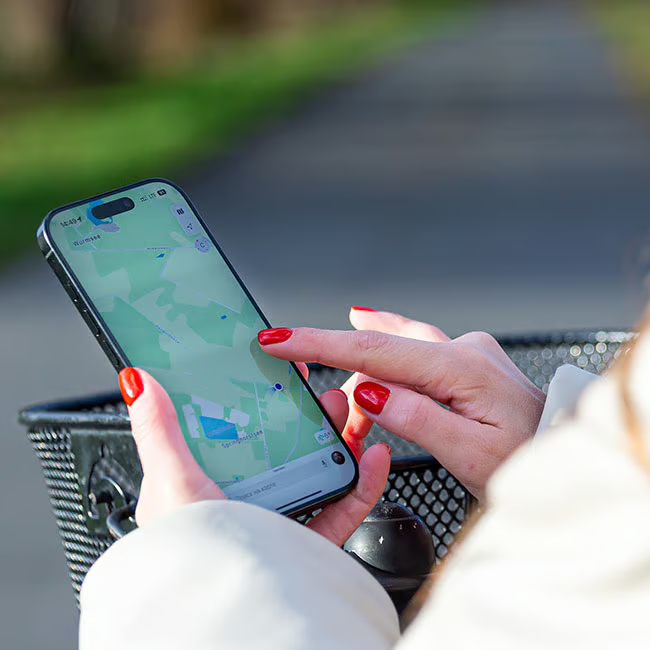
1. Significant Locations
The Significant Locations feature on the iPhone is part of Apple's Location Services that keeps track of places you visit frequently to provide personalized features, like better Maps suggestions, predictive traffic updates, and updated photo memories. However, this means that your device is consistently keeping track of your most-visited locations.
"It quietly logs the detailed patterns of your movements to better improve 'contextual awareness' in Apple's ecosystem," explains Israfilov.
You disable this feature by going to Settings, then Privacy & Security, tapping on Location Services, then System Services, and toggling off Significant Locations.

2. Find My Network
The Find My Network feature on iPhones helps you locate your Apple devices even when they're offline or turned off. It uses an encrypted network that can anonymously detect your device's Bluetooth signal and relay its location back to you, making it helpful for finding items like AirTags or lost iPhones. While it's a nifty feature for finding your phone, Israfilov says it's "disconcerting from a privacy standpoint."
To turn this off, you have to go to Settings, then Apple ID, before selecting Find My, then Find My iPhone, and then Find My network.

3. Location-Based Ads & Suggestions
You might not realize that some of the reviews and ads you see on your phone are being personalized through this setting on your iPhone. It uses your current location to deliver more personal or relevant ads, suggestions, and content across Apple services. For example, it might show nearby restaurants in Maps or suggest local apps in the App Store.
As Israfilov notes, it "updates based on your real-time location," so if you want a bit more privacy and stop your phone from being unnecessarily tracked, you can find it by clicking on Settings, then Privacy & Security, then Location Services, then System Services.