



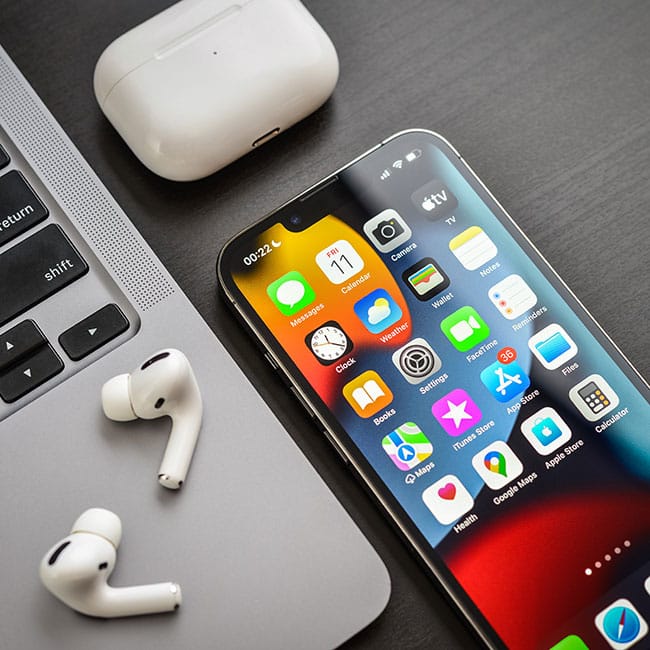
There are so many iPhone users out there who aren’t using their device to its full potential, which is understandable, considering we buy them and don’t have Apple employees at our sides at all times.
Most iPhone users stick to the basic settings Apple highlights during setup, but what many don’t realize is that there are several hidden features and adjustments that can completely change the way your phone runs. From privacy controls that protect your personal data to battery-saving options that keep your device lasting longer, these settings are designed to maximize performance and security. However, Apple doesn’t always make them obvious. We spoke with tech expert Rory Bokser with Moken.io about three iPhone settings hacks that can make your device faster, safer, and more efficient than ever. Read more about them below.

This Clean, Effective Powder Helps Support Muscle Growth, Endurance, And Recovery
1. Background App Refresh
Bokser describes this iPhone setting as one that he always suggests people "flip" in order to save more battery life and keep their phone running quickly.
"Instead of going app by app, you can switch it off globally," he explains. "Most people have more than 30 apps that refresh in the background, which eat bandwidth and reduce battery. On iOS 16, I've noticed it hogs 12–15% of daily power just from syncing junk from social, calendar, and ride-sharing apps. To turn off Background App Refresh globally or selectively, go to Settings > General > Background App Refresh. Even if you're not using it, this will also stop malware from pinging back and forth in the background."

2. Reduce Motion
The 'Reduce Motion' setting on the iPhone is designed to minimize the animations and visual effects that appear when you use your smartphone. You may not realize it, but your iPhone uses zooming and other effects when apps zoom in and out as you open or close them, or when your wallpaper subtly shifts as you tilt your phone. Turning these off can help maximize your device.
"Flip 'Reduce Motion' in Settings > Accessibility > Motion," suggests Bokser. "The number of GPU-hogging animations such as fades, zooms, etc., especially on older hardware, is reduced. This will free up ~50–100 MB of RAM when under heavy load. Because fewer graphics resources are devoted to transitions, the system is just snappier. Another reason to enable it: Apple never tells you about this one since, well, it kind of dims the shine of iOS."

3. Significant Locations
"This is a passive tracker of where you go," says Bokser, referring to the setting that keeps track of where you go, in order to help personalize your iPhone experience and make suggestions, like telling you how long it would take to get home via Maps.
"Even though this data is encrypted, it's still being tracked in the background," he continues. "I turned this off on a device that had three years' worth of travel data from over fifty cities stored. Over a 48-hour period, the battery delta jumped by 8-9% after I turned it off and cleared the history. You'll still have GPS, just not the always-on, silent geo-indexing Apple never bothers to mention."


