When you start using an iPhone, it can be overwhelming to see how many settings there are, and it’s not often you’re told exactly which ones to pay attention to.
However, it’s actually quite important to go through some of your settings and ensure things are adjusted the way you want them to be, as they can make a big difference in your privacy and the protection of your device’s data. These controls determine how much of your personal information is shared with apps, advertisers, and more. Adjusting your privacy settings helps protect your information, reduce targeted ads, and give you more control over who can access your data. Tech expert Tom Wells, who runs the YouTube channel Proper Honest Tech, recently shared four iPhone settings that every user “needs” to adjust or “should disable.” Read more about them below.

Struggling With Sleep? This Rechargeable Sound Machine Is A Total Game-Changer

1. Photo Location Services
On newer versions of iPhones, when you take a picture and it's in your camera roll, there's a setting automatically turned on that keeps track of the precise location where the photo was taken. For instance, if you took a picture in your friend's house in a different state, when you look back at the snapshot, you can scroll down and see your friend's home on a map. While this feature may be convenient to you, if you were to send a photo to someone else, they would also be able to see where it was taken, setting you up for privacy risks.
"To avoid that, open the Photos app, and select a photo," explains Tom. "Tap the share button in the bottom-left corner, then tap Options at the top of the screen. Here, you'll see a switch for Location. Turn it off, and the photo will be shared without any coordinates attached...you'll have to do this for every photo you share."

2. iPhone Analytics
Tom notes that this feature is "buried deep in settings," and it has you decide whether or not you want to send your iPhone's usage data or information back to Apple, so they can make improvements and keep track of how their devices are functioning for future reference. However, for many iPhone users, this can be unsettling.
"Why should we, as paying consumers, be helping Apple like this?" asks Tom. "Some users have claimed in the past that they've toggled these settings off, only to find them switched back on after a phone update."
To double-check this setting and turn it off, you open your settings, then go to Privacy & Security, then scroll down to Analytics & Improvements. Once you open that page, there will be a "long list" of analytics improvement options, and you can toggle them all off. Be sure to check these again anytime you update your iPhone.

3. Apple Advertising
"Most people think of targeted ads as something Google or Facebook does, but Apple also runs its own ad system inside the App store, News, and Stocks," explains Tom. "By default, your iPhone uses your app activity to personalize those ads. Like everything Apple, they claim that this is privacy-centric, and that they don't share your personal data with third parties or track you across apps and websites."
However, it's understandable to want extra privacy still and take control of this ad situation. To adjust the Apple advertising settings, you can go to Privacy & Security and tap Apple Advertising to turn off Personalised Ads.
4. Location Services
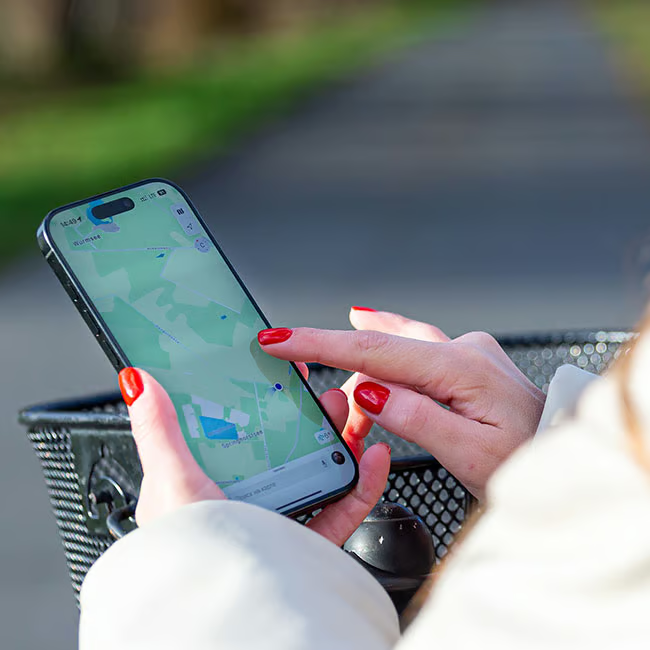
If you're an iPhone user, you've likely heard tech experts make a few warnings about your Location Services settings and what you should have turned on or off. Tom agrees that this is very important, as it's an area of your settings that could be "quietly giving away your information."
"I'm not suggesting you turn them off entirely, as apps like Maps obviously need your location to function, but there are certain services that probably don't, and I think it's worth being selective with your precise location," notes Tom. "In settings, go to Privacy & Security, then Location Services. Scroll down through the list and you'll see every app that's requesting access."
Tom encourages his viewers to pay attention to apps that 'Always' have access to your location versus 'While Using.' The latter is considered safer, unless it's a vital app like a map or Find My.