

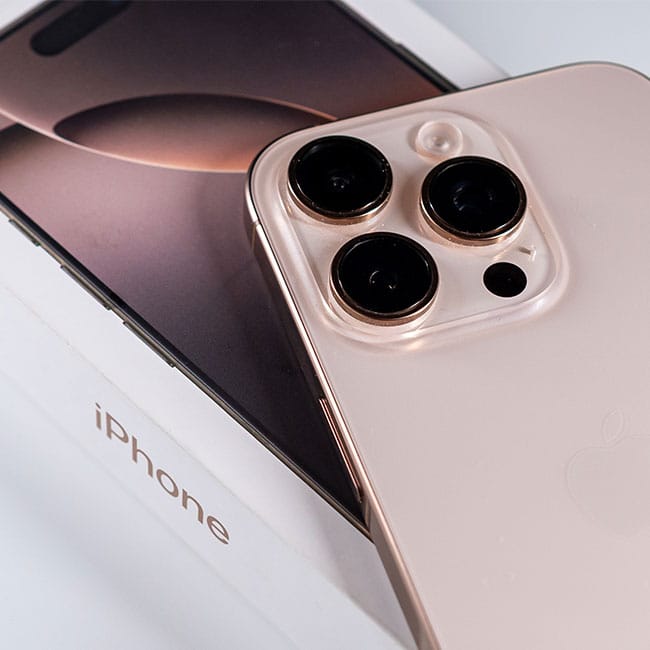
When you buy a new iPhone, it’s easy to assume that everything is set up with your best interest — and privacy — in mind. But some default settings may be sharing more of your personal data than you realize. From location tracking to activity monitoring, your iPhone could be collecting and sharing information about your habits, preferences, and location without you even knowing about it.
Your data can be used to build detailed profiles for targeted ads, which means less privacy. Sharing data can even be more dangerous than that: if your information falls into the wrong hands, through data breaches or malicious apps, it could put your security at risk. Once your data is out there, it’s incredibly difficult to get it back or control how it’s used. Changing this one iPhone setting that could be compromising your privacy can help.

Struggling With Sleep? This Rechargeable Sound Machine Is A Total Game-Changer

1. Analytics and Improvements
Apple has a setting called iPhone Analytics & Improvements that’s designed to help improve their products and services. While the intention may be good (to help Apple make its product more compelling), this setting allows your device to automatically collect information about how you use your iPhone, including your usage patterns, app activity, and even location data. This information is then shared with Apple and, depending on your settings, could even be shared with third-party developers. Even though Apple says this data is anonymized, many users are concerned about how their data is being monitored and where that information is going. Plus, you didn’t sign up to help Apple make progress using your data, so the whole thing can feel like an invasion of privacy.

2. How to Change the Analytics and Improvements Setting
The good news is that you can review and change these settings to limit data sharing. To do this, go to Settings > Privacy & Security > Analytics & Improvements. You’ll see several options like Share iPhone Analytics, Share With App Developers, and Improve Siri & Dictation. You can toggle off any or all of these to stop your iPhone from sending data to Apple or app developers. Turning off these features should help make your iPhone experience more secure and private.