
Jennifer Aniston gives Benny Blanco a stylish hair makeover.
Top summer fragrances of 2026 recommended by beauty editors.
Julia Roberts in chic Bermuda shorts at an award show.

Homepage

Hate The 'Liquid Glass' Display On Your iPhone? A Tech Pro Teaches You How To Adjust It

November 17, 2025 by Abigail Connolly
shefinds | Homepage
Featured image

If you’re an Apple customer, there’s a good chance you’ve been hearing about the newest iOS update, which is giving iPhones a whole new display that users are not all that into.

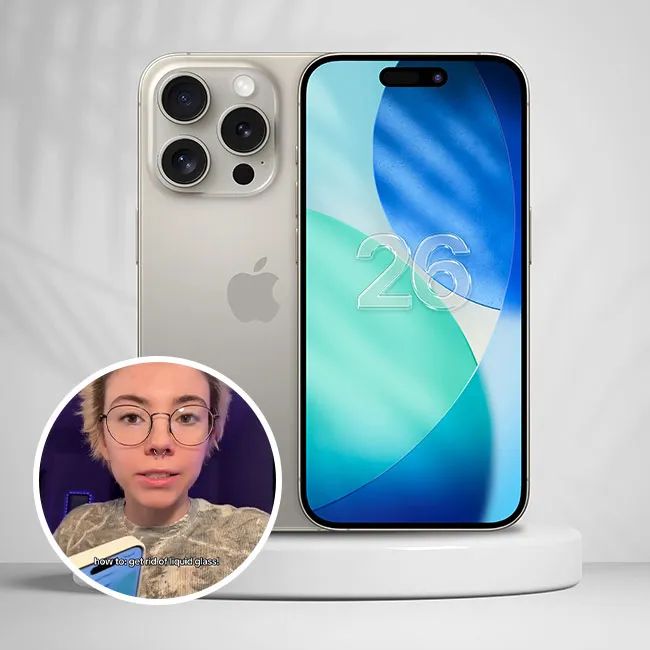
One of the latest debates amongst iPhone users is whether or not they like the ‘liquid glass’ display feature that all new devices will have, as well as phones updated to the latest iOS software. Numerous users have been expressing their distaste for the display online, and it’s gotten to the point where many are aching for the older software. Luckily, a tech pro and content creator, Kaitlyn, recently shared a tutorial for how to adjust the liquid glass feature to get your phone closer to how it was before. Read more about it below.

house unit img
Women Are Swapping Their Boring Water For This Ice Pop Electrolyte Mix!
Image from SHEfinds

The New iOS Update Includes The 'Liquid Glass Feature'

If you've been keeping up with the latest tech news, then there's a chance you know that Apple's latest iOS software, iOS 26, launched this summer, and there were a whole bunch of new features and changes. These features and updates will be on every new iPhone model, as well as those who update their software.


Although there were a handful of exciting new updates, there was one that caused a lot of controversy - the 'liquid glass display.'


"Inspired by the depth and dimensionality of visionOS, the new design takes advantage of Apple's powerful advances in hardware, silicon, and graphics technologies," wrote Apple in a press release. "The new material, Liquid Glass, is translucent and behaves like glass in the real world...This gorgeous new material extends from the smallest elements users interact with every day — like buttons, switches, sliders, text, and media controls — to larger elements, including tab bars and sidebars for navigating apps. It also shines in system experiences, such as the Lock Screen, Home Screen, notifications, Control Center, and more."

@reddnea liquid glass gives me a headache #apple #iphonetips #ios26 #liquidglass ♬ Sound of seconds(69453) - WALKER

A Tech Pro Shows You How To Adjust The Liquid Glass Feature

After people had iOS 26 on their phones and got a taste of the liquid glass display, numerous users were not into it, writing that it made their phones look "ugly" on social media. Others also simply did not care for the display functionality-wise, and felt it made their screens more confusing to look at than before.


Although you might not be able to go back in time with your display, there are ways to 'get rid of' the liquid glass feature and get your phone looking similar to what it used to be, according to former Apple employee and tech content creator Kaitlyn.


First, Kaitlyn instructs you to go into your Settings, then scroll down to Display & Brightness, then click on Liquid Glass.


"Now you have the option to do Clear or Tinted," she adds.


According to Kaitlyn, switching to Tinted helps "increase opacity and add more contrast," which can adjust the display to look a bit more like how it was before.


Author:

Editorial Assistant

Abigail is a journalist based in Brooklyn, New York. As an Editorial Assistant for SheFinds, she covers topics ranging from celebrity news and fashion to wellness. She has written for other publications, including Chip Chick, Bandsintown, BroadwayWorld, and more. When she isn't writing, Abigail loves spending time in the city with her friends, being a 'dog mom' to her Chihuahua, and singing along to some of her favorite music.

Sofia Vergara shines at the Oscars in glamorous attire.
Kate Middleton shares a moment with Prince George.
Woman adding sugar to aromatic coffee for enhanced flavor.
Gwyneth Paltrow at the Golden Globes looking glamorous.
Donald and Melania Trump posing together at an event.
Angelina Jolie attending the AFI Fest with elegance.
Taylor Swift and Travis Kelce enjoying a public outing together.
Makeup tips from Nikol Johnson on YouTube.
Ivanka Trump at the grand opening of Fontainebleau Las Vegas.
Crofton cold brew maker and drinking glasses from Aldi.
Barron Trump at Donald Trump's inauguration ceremony.
Ariana Grande stunning at the Oscars red carpet.
Delicious bagels with blueberries and butter on wooden board.
Close-up of hands holding the Apple iPhone 17 Pro Max.
Common skincare mistakes for women over 40 highlighted.
Hairstyles that enhance facial structure and draw attention away from jowls.
Meghan Markle at Day 4 of the Invictus Games, showcasing her support.
Gigi Hadid at Le Grand Diner du Louvre, elegant and stylish look.
Close-up of a person using an iPhone, showcasing mobile technology.
Hand holding an iPhone displaying various apps, highlighting smartphone usage.
Sofia Vergara shines at the Oscars in glamorous attire.
Kate Middleton shares a moment with Prince George.
Woman adding sugar to aromatic coffee for enhanced flavor.
Gwyneth Paltrow at the Golden Globes looking glamorous.
Donald and Melania Trump posing together at an event.
Angelina Jolie attending the AFI Fest with elegance.
Taylor Swift and Travis Kelce enjoying a public outing together.
Makeup tips from Nikol Johnson on YouTube.
Ivanka Trump at the grand opening of Fontainebleau Las Vegas.
Crofton cold brew maker and drinking glasses from Aldi.
Barron Trump at Donald Trump's inauguration ceremony.
Ariana Grande stunning at the Oscars red carpet.
Delicious bagels with blueberries and butter on wooden board.
Close-up of hands holding the Apple iPhone 17 Pro Max.
Common skincare mistakes for women over 40 highlighted.
Hairstyles that enhance facial structure and draw attention away from jowls.
Meghan Markle at Day 4 of the Invictus Games, showcasing her support.
Gigi Hadid at Le Grand Diner du Louvre, elegant and stylish look.
Close-up of a person using an iPhone, showcasing mobile technology.
Hand holding an iPhone displaying various apps, highlighting smartphone usage.