You may not think your iPhone settings are there to do anything but add convenience to your phone (and your life). And, while that’s true for the most part, it’s also true that some of those same settings that make things run more smoothly are also weighing on your battery power and causing your phone to lag.
Think about it: any setting that is sending you notifications every time an app updates with a new message or post is using up your phone’s resources to do that, even if you aren’t touching the phone or on that app at the time. With every new convenience a setting delivers your way, you’re often going to pay for it with a slower phone. These four settings can make your iPhone run slowly — changing them can help.

This Clean, Effective Powder Helps Support Muscle Growth, Endurance, And Recovery

1. Background App Refresh
Background App Refresh is a complete app of convenience that works by consistently updating your apps so that your content is always fresh and updated. Never having to wait for new content to launch is a nice-to-have phone feature, but if the benefit doesn’t outweigh the negative of lower battery power and a slower device, you can turn off the settings. Go to Settings > General > Background App Refresh and disable it.
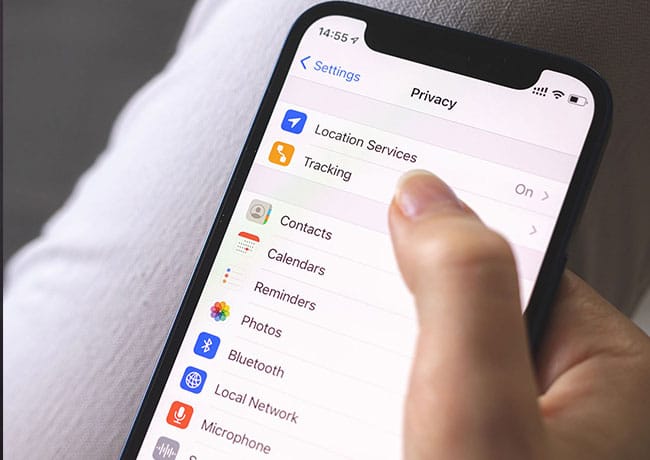
2. Location Services
Apps use location services to track your location via GPS, WiFi, Bluetooth, or other methods. Different apps have reasons for tracking your location, and not all are doing this in order to sell your data to third parties. Apps like Maps and Weather need this data to do their jobs. But you can be more selective about the apps that access your location by going to Settings > Privacy & Security > Location Services. Choose from the options: Never, Ask Next Time or When I Share, While Using the App, or Always.

3. Push Notifications
Push notifications are messages sent by apps to your device, even when the app isn't open. They can include alerts, sounds, banners, or badges, and are used for things like social media updates. Turn off Push Notifications by going to Settings > Notifications > toggle Notifications off.

4. Visual Effects
Visual Effects include parallax effect, zoom animations, and message effects like balloons and confetti. They make your phone experience more fun and festive, but at the expense of your phone’s battery and speed. You can reduce motion by heading to Settings > Accessibility > Motion > Reduce Motion.