


Trendy hairstyles for women over 50 in 2026.
Donald Trump discusses maternal healthcare initiatives.
Queen Camilla and Kate Middleton at an event.

Tech

This Is The Worst Mistake You Can Make When Sending An iMessage On Your Phone

January 23, 2019 by Justine Schwartz
shefinds | Tech
Featured image

Most of us iPhone users do it daily, if not hourly: send iMessages.

“iMessage is one of the most used apps on an iPhone because it’s the app used for sending text messages,” technology expert Burton Kelso explains. But there are some mistakes we’re all making when doing so, from a privacy and practical standpoint.

Here’s what experts say on the matter:

house unit img
Women Are Swapping Their Boring Water For This Ice Pop Electrolyte Mix!
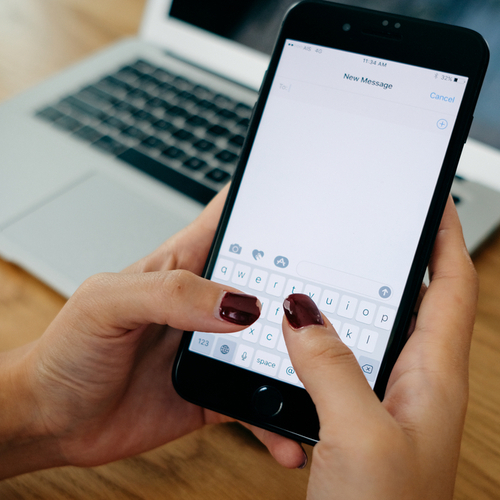
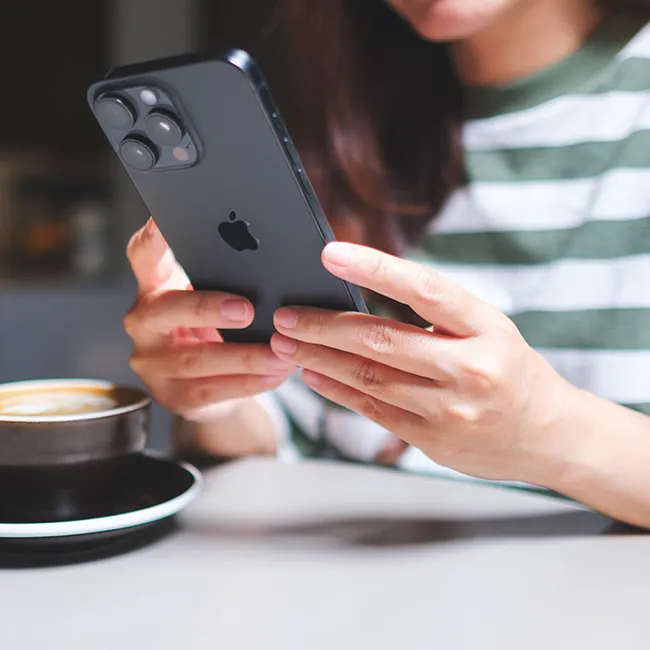
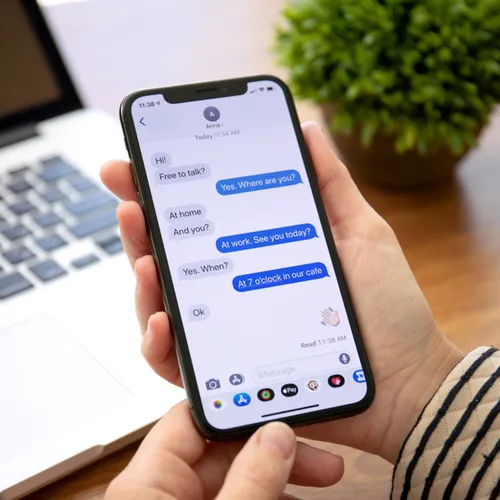
Person sending an iMessage on a smartphone.

Making Your Number Public

"Privacy is one of the big factors when sending text because a text message reveals your phone number to anyone who has a iPhone," Burton Kelso, The Technology Expert tells us.

"It's best to keep your smartphone number private and of the best ways to do this is to setup your email address as text number."
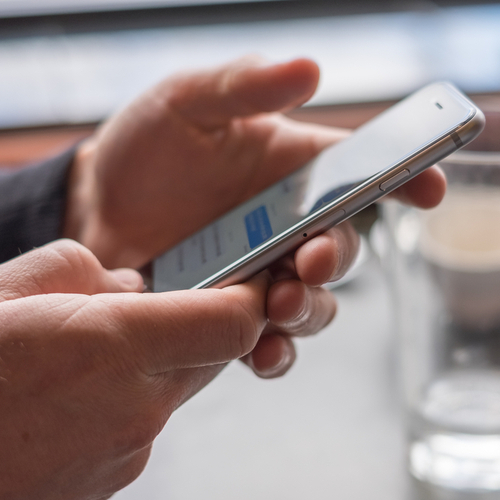
iPhone displaying iMessage conversation on screen.

Also:

Hitting 'Send' After Every Line

You should hit "return" instead, mobile consultant Giacomo Balli tells us.


"When you start expressing a longer thought, be aware all recipients will receive a notification every single time you hit the send button. Even when set to vibrate, this can be even more intrusive than a phone call."

Sending Large Attachments

You should also avoid sending large attachments and GIFs, Giacomo warns.


"Downloading large attachments might take quite some time (especially videos or animated GIF images)," he warns. Additionally, there's the storage issue. "Our devices easily run out of space."

Laptop charging on a pillow while in bed.

READ MORE: This Is The Worst Mistake You Can Make When Charging Your Laptop
Author:

Editorial Director

Justine Schwartz is a veteran women's lifestyle editor; she's written extensively about style & beauty tips, health advice and wedding planning. Her work has appeared in New York Magazine, Huffington Post and New York Weddings. Justine has been with SheFinds since 2010; you can reach her via email at Justine@shefinds.com.

New iPhone 17 displaying sleek design and features.
Woman working on laptop, focused on her tasks.
Smartphone connected to charger, indicating low battery.
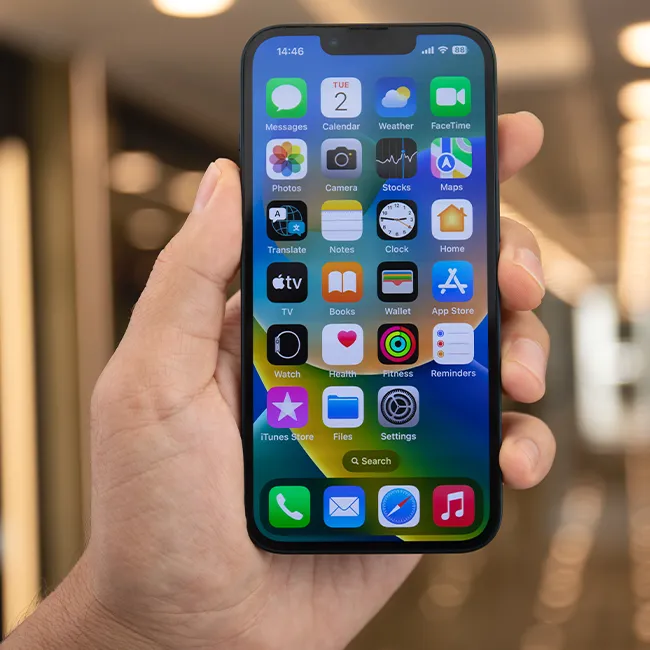
iPhone screen showcasing various applications and features.
Close-up of hands holding iPhone 17 Pro Max.
Person using iPhone to browse apps and features.
Holding iPhone, displaying multiple applications on screen.
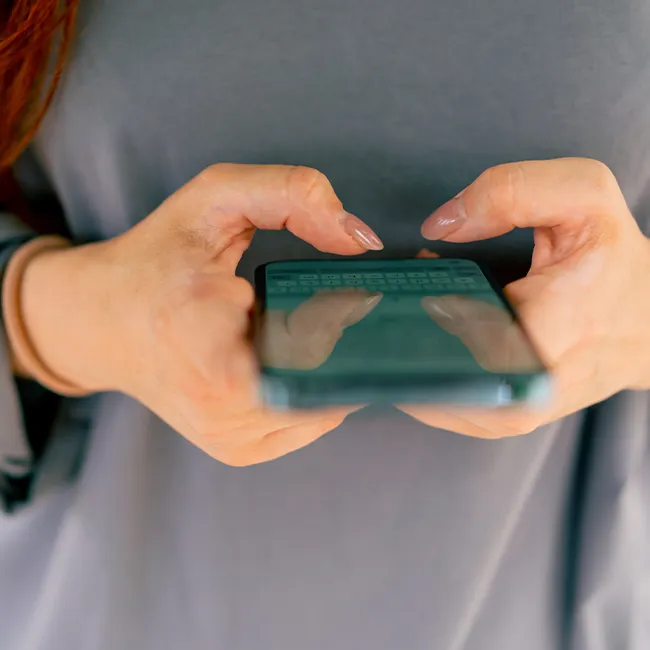
Woman texting on smartphone, engaged in conversation.
Android phone showing a variety of applications.
Samsung Galaxy Z Flip 7 smartphone in an open position.
Woman enjoying fresh summer salad with watermelon and feta.
Holding Android phone, displaying popular apps.
iPhone 14 featuring various apps on its screen.
iPhone settings screen indicating need for charging.
Sony headphones, iPad, and laptop set up on Amazon.
Person actively using iPhone for communication or browsing.
iPhone screen filled with different applications and icons.
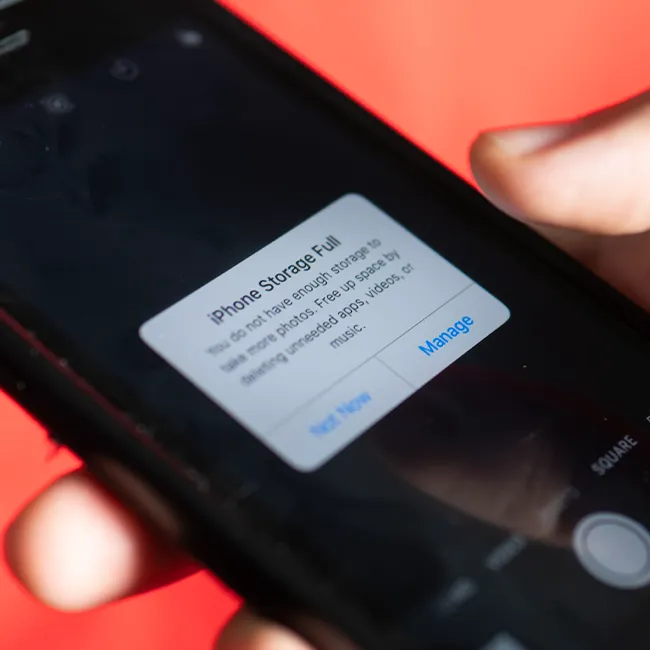
iPhone storage full notification displayed on screen.
Person holding iPhone, ready to use or take a photo.
iPhone screen showcasing apps and features available.
New iPhone 17 displaying sleek design and features.
Woman working on laptop, focused on her tasks.
Smartphone connected to charger, indicating low battery.
iPhone screen showcasing various applications and features.
Close-up of hands holding iPhone 17 Pro Max.
Person using iPhone to browse apps and features.
Holding iPhone, displaying multiple applications on screen.
Woman texting on smartphone, engaged in conversation.
Android phone showing a variety of applications.
Samsung Galaxy Z Flip 7 smartphone in an open position.
Woman enjoying fresh summer salad with watermelon and feta.
Holding Android phone, displaying popular apps.
iPhone 14 featuring various apps on its screen.
iPhone settings screen indicating need for charging.
Sony headphones, iPad, and laptop set up on Amazon.
Person actively using iPhone for communication or browsing.
iPhone screen filled with different applications and icons.
iPhone storage full notification displayed on screen.
Person holding iPhone, ready to use or take a photo.
iPhone screen showcasing apps and features available.