



If you’re an iPhone user, there’s a good chance you’ve had a moment where your phone starts running way slower than you want it to.
It can be incredibly frustrating when your iPhone starts running slowly, especially when you rely on it every day for everything from texting to browsing to staying organized. Many people assume the slowdown is just due to the phone getting older, but what you might not realize is that certain settings could actually be working against your device’s performance. Background processes, unnecessary system features, and automatic updates running in the background can all quietly eat up resources, making your iPhone feel extra slow. We spoke with tech experts about three iPhone settings you can adjust to help it run faster. Read more about them below.

Struggling With Sleep? This Rechargeable Sound Machine Is A Total Game-Changer
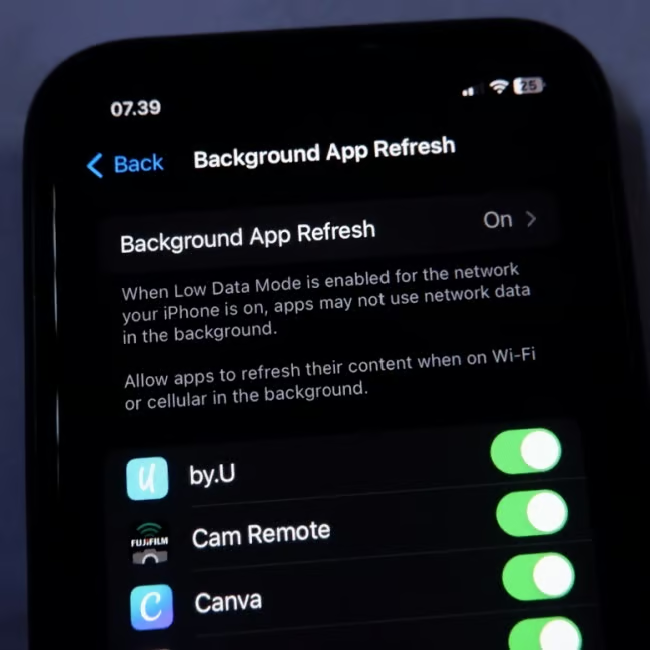
1. Background App Refresh
If you don't know what this setting is, it allows apps to update their content even when you're not actively using them. For example, your email app can fetch new messages, or a news app can refresh with the latest headlines, so the info is ready when you open it.
"This is the top culprit for system slowdown and battery drain," explains tech guru Abbie Richie with The Smarter Service. "Turning this off prevents dozens of apps from secretly consuming CPU power and memory in the background. Your phone will only dedicate resources to the app you have open at the moment."

2. Disable Significant Locations
If you get extra concerned about your privacy and your iPhone checking your location, and believe you've turned off most of your location services, you may want to double-check this one. Significant Locations on your iPhone is a feature that keeps track of places you visit most often, like your home, work, or other frequently visited spots. Your device then uses this data to provide personalized services, like predicting traffic on your commute, suggesting routes in Maps, and more.
"Significant Locations of your iPhone can be turned off by going to Settings > Privacy & Security > Location Services > System Services > Significant Locations," says Mortlock. "This feature creates a log of places you visit regularly, for example, your home or your work, which means your daily routine can be easily tracked by someone if your phone is ever stolen or compromised."
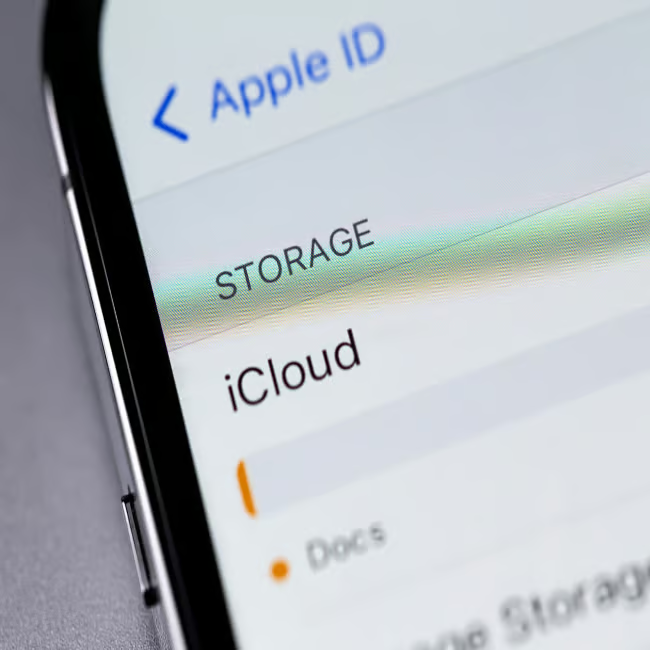
3. Storage Space
In your iPhone settings, you can see exactly what's going on with your storage and iCloud storage at all times. The 'iPhone Storage' setting is one that many people don't pay enough attention to, and there's a good chance that if your phone is running slow, it's because your storage is quite full.
"When an iPhone's storage is nearly full (typically over 80-90% capacity), the operating system struggles to find 'scratch space' to perform its normal operations, leading to lag and app crashes," says Richie. "Freeing up space allows the operating system to cache files and manage processes efficiently."