Are you getting a brand new iPhone for the holidays, or is it simply time for an upgrade? Then you’ll want to be ready to set it up.
Although all iPhones will guide you through a basic setup process when you first get it, as it turns out, there’s a lot more you can do settings-wise to set yourself up for success and optimize your device. Tech pro and content creator Brandon Butch recently created a video sharing new iOS 26 settings you “need” to change on your iPhone. Read more about three of them below.

Struggling With Sleep? This Rechargeable Sound Machine Is A Total Game-Changer

1. Screen Unknown Callers
For safety purposes, it's often recommended by tech experts that you turn on the setting to "Silence Unknown Callers," which prevents you from getting inundated with spam calls from unknown numbers you'd rather not be hearing from throughout your day. However, if you are still worried about missing any important calls under this setting, you can now adjust it.
"Now, easily one of the most useful features in iOS 26 is call screening," explains Butch. "So, this is a new feature for the phone application, where, when an unknown caller calls you, it will now immediately ask that person for their name and why they're calling, and it will not actually give you a notification right away."
The setting is named 'Ask Reason For Calling,' and it's located under Settings > Phone > Screen Unknown Callers > Ask Reason For Calling
2. Adaptive Power
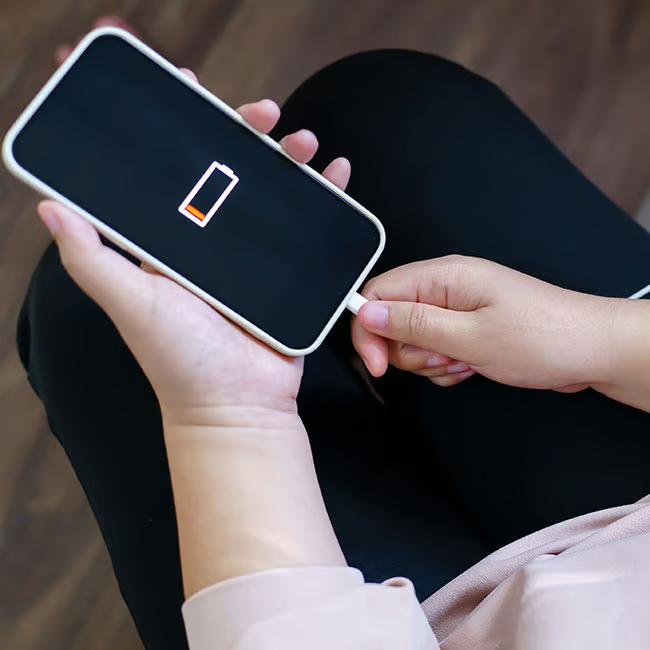
One thing various Apple users were complaining about when they first started using their phones with the new iOS 26 update was battery life. Some felt that the latest updates were causing their phone to run out of battery life faster, and therefore, you'll want to do what you can to preserve it. The Adaptive Power battery setting might just be able to help you out.
"We now have a brand new power mode that is disabled by default called Adaptive Power, and you might want to go ahead and turn this on to see how it improves your battery life," explains Butch. "So, Apple says that when your battery usage is higher than usual, your iPhone can extend your battery life by making performance adjustments such as lowering display brightness, allowing some activities to take longer, or turning on Low Power Mode at 20%. So, I would highly recommend turning that on because some people may not even realize that they're using their phone more than usual, more than they should be. So, this could actually help a lot with saving battery."
You can reach this setting via Battery > Power Mode > Adaptive Power.

3. Snooze Duration
If you use your iPhone as your morning alarm, you're not alone. It's very convenient, but some users get quite annoyed with the 'snooze' feature, as the automatic iPhone snooze duration time is nine minutes, which is just enough time for many people to fall back into deep sleep. Now, you can create your own snooze time.
"We now have a new section down here where you can customize the snooze duration. So, if you were not a fan of the default duration before, you can now change that from 1 minute up to 15 minutes. And again, this will also work for your wake-up alarm as well."
You can find this feature through your Alarm app, creating a new alarm, then going to Snooze Duration to adjust the time.