



Storage can be so hard to come by on your iPhone. And is there anything as frustrating as needing to take that video or photo, like right now, and being faced with a pop-up that lets you know in no uncertain terms you are out of storage and will either have to hurry up and delete a few hundred things or spend money on even more storage?
During those times, it’s tempting to just start deleting apps left and right. You may even get so desperate that you delete photos you know you’re going to miss when the storage crisis is over. Before you take drastic steps, try these three tricks to free up iPhone storage without deleting apps or photos.
Eliminate Any Hidden Files
Possibly unbeknownst to you, there are hidden files on your iPhone, such as films, app crash logs, file caches, and more, that consume storage space, and it is not easy to erase them manually, says Matt Magnante, Content Strategist at FitnessVolt. “These files include videos, app crash logs, file caches, and more,” Magnante says. “Consequently, making use of a tool for cleaning an iPhone, such as iSumsoft’s iDevice Cleaner, will be of great assistance. Using this tool, you may scan your iPhone for hidden files and then delete them with a single click in order to make more storage space available. When you take a picture using the camera on your iPhone, the app will automatically use high dynamic range (HDR) to capture multiple exposures with varying degrees of brightness. This implies that when you hit the shutter button once on the iPhone Camera, numerous images will be taken and saved at the same time. These photographs are identical in subject matter; the only difference is in the lighting and levels of brightness.”
In other words: these are the photos and other files that you will never miss — because you probably don’t even know they are there. Getting rid of them will immediately free up storage space.
Offload Unused Apps
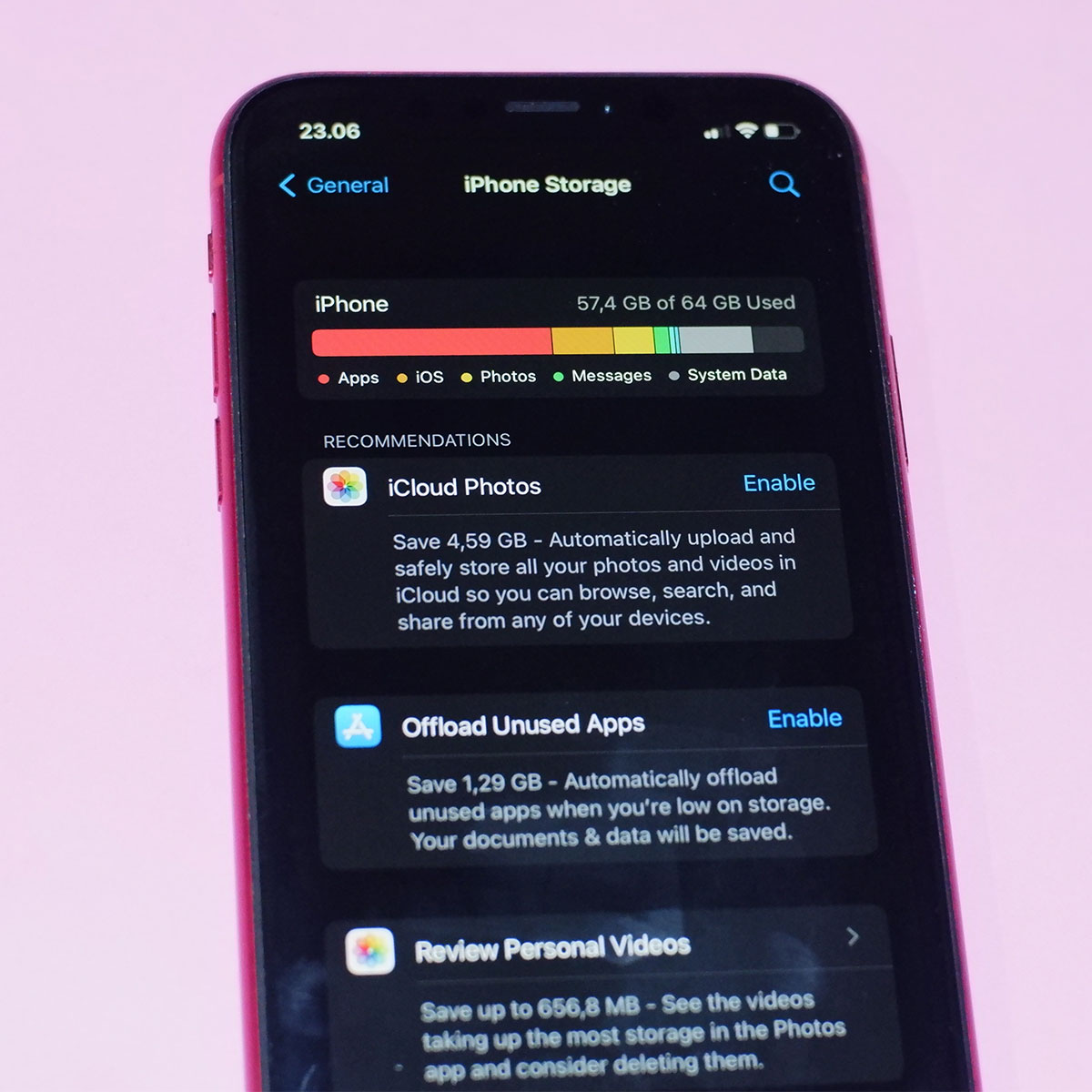
Admit it: you haven’t played some of the game apps on your phone since the day you downloaded them. It’s time to free up storage space by getting rid of apps you never, ever use. “iOS offers a feature called ‘Offload Unused Apps’ that allows you to remove unused apps while keeping their documents and data intact,” says Tech Expert Pushkal Bajpai at Top10Ratings. “This can free up significant storage space without losing any important information.”
To do this, simply go to Settings > General > iPhone Storage, and enable “Offload Unused Apps.” The offloaded apps can easily be reinstalled from the App Store when needed.
Clear App Cache and Data
Some apps accumulate cache and data over time, taking up valuable storage space. “You can manually clear the app cache and data by going to Settings > General > iPhone Storage and selecting the app you want to manage,” Bajpai says. “Within the app storage settings, you’ll find options to ‘Offload App’ or ‘Delete App,’ along with the amount of space taken by documents and data. Tap on ‘Delete App’ and confirm to remove the app’s data. Note that this will erase any local app data, such as preferences or offline content.”
Three simple tips — three simple ways to gain back valuable storage space without deleting all of those apps and photos you love.