





If your phone keeps warning you that you’re running out of storage, you might be tempted to start deleting apps or getting rid of photos you actually want to keep.
But before you do that, there are a few easy ways to clear up space without losing anything important. From cleaning up duplicate pictures to changing a simple setting, these three storage hacks can help you free up gigabytes on your phone without having to sacrifice your favorite apps. Read more about them below.

Women Are Swapping Their Boring Water For This Ice Pop Electrolyte Mix!
1. Get Rid Of Duplicate Photos And Videos
One of the easiest ways to free up storage is to go through your photo library and look for duplicate pictures and videos. It's easy to end up with multiple copies of the same photo, especially if you've taken several shots to get the perfect one or accidentally saved the same image more than once. Both iPhone and Android users have tools that can help identify duplicate files, making it easier to remove the extras while keeping the photos you actually want.
2. Turn On The 'Offload Unused Apps' Setting
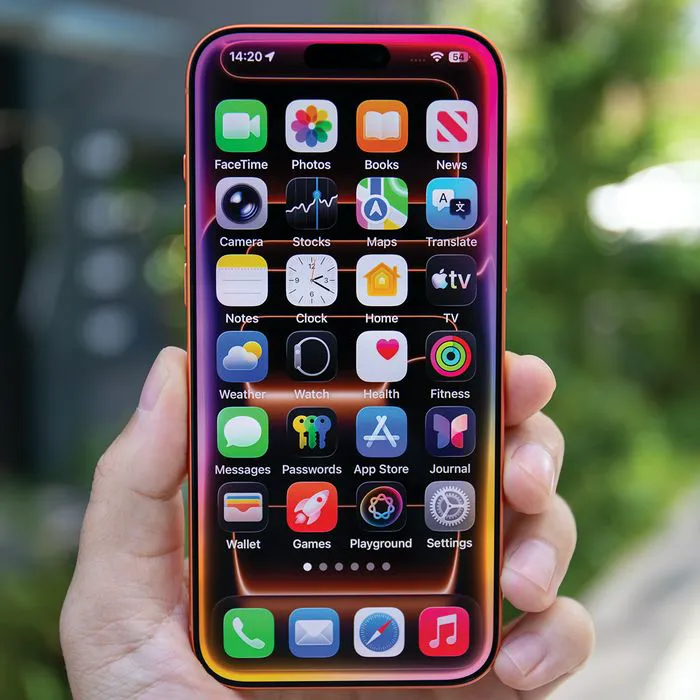
If you have apps you rarely use but don't necessarily want to delete, your phone may have a setting that can help. On iPhones, the 'Offload Unused Apps' feature automatically removes apps you haven't used in a while to free up storage, while keeping their documents and data saved. That means you can reinstall an app later and pick up where you left off without losing your information. To turn it on, go to Settings, tap App Store, and enable 'Offload Unused Apps.'
"Apps are often one of the biggest storage drains we see, particularly games, social media, and video apps," explains tech repair pro James Waterston. "If there's an app you rarely use, offloading it is a good first option because it removes the app itself while retaining its documents and data, so you can reinstall it later without necessarily starting from scratch."

3. Review Large Attachments In Your Messages
Your text conversations could also be taking up more storage than you realize, especially if you regularly send and receive photos, videos, and other large files. Instead of deleting entire conversations, take some time to review the largest attachments and remove the ones you no longer need. On an iPhone, you can check your iPhone Storage settings to see how much space Messages is using and review large attachments. It's a simple way to clear out some extra space without losing important conversations.
"Years of photos, videos, GIFs and other attachments sent through Messages can quietly build up into a significant amount of storage," adds Waterston. "Rather than deleting important conversations wholesale, go to Settings > General > iPhone Storage > Messages and review the largest attachments first. It's usually possible to recover a useful amount of space by removing a handful of old videos without losing years of messages you may want to keep."