







Women Are Swapping Their Boring Water For This Ice Pop Electrolyte Mix!
Here’s a quick test: Pull up the calculator on your phone.
Okay–how long did that take? If it took you more than 15 seconds to find it, you need to organize your iPhone apps better.
I know, I know–that is so nerdy and who has the time? Well, think about all the time you’ll save yourself everyday by being able to find your apps faster. These are precious moments of your life that you’re currently wasting thumbing back and forth between the pages on your home screen! Come on people.
Here are some suggested ways to organize your iPhone apps (below), but let’s start with instructions for how to actually move your icons, drop them in to folders, etc:
–To move apps on your smart phone or iPhone, hold your finger on the icon until the apps start to jiggle from side to side (this is Edit mode). Drag it to the new position (the other icons will move to make room for it). If you want to move the icon to a new page, continue dragging it to the side of the screen until it switches over to the next page. You can drop it there. While in Edit mode (the jiggling apps), you can click and drag other icons around.
–To create folders, you go in to Edit mode (hold your finger down on any icons to activate) and then click and drag one icon on top of another icon you want it to share a folder with. Your phone will automatically generate a name for the folder (they are kind of lame), so if you want to rename the folder, touch the folder name to edit. When done, hit Done.”
–To delete apps on your home screen that you never use (which is a good idea in the organization process–you can always get them back from the cloud, you’re not deleting them forever!), enter Edit mode and select the “X” in the upper left hand corner of the screen.
Okay, so now that we have the basics covered, here we 3 potential ways to organize your apps (these are OCD person-approved):
READ MORE: How To Make Your iPhone Charge Faster
1. Arrange by color.

This works best for people who are very visual–it’s organized only in so far as if you know what color an app is (green for Messages, blue for Facebook, etc.) you can find it quickly. Plus, it’s incredibly pretty and visually calming.
Just a reminder, the rainbow goes ROYGBIV (red, orange, yellow, green, blue, indigo, violet). There is no black/grey/white on the color wheel, but there are several apps in these shades (like Settings), so I put them after violet (purple) in that order.
If you’re not a person who responds to color, this might not be the most logical/intuitive way to organize.
2. Use folders.
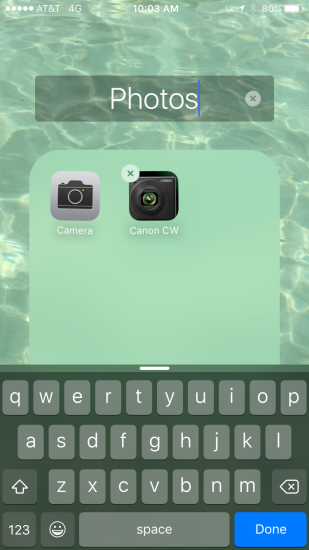
This works best for people who like to sort stuff–do you use file folders a lot at work or have a label maker at home? Folders might be the best option for you. The only caveat is that you can’t visually see all the icons, you have to remember how you categorized them. For that reason, you’ll need to come up with folder groupings that make sense and names for the folders that clearly explain what they are.
Here are some suggested folders that people say work for them: “News” “Games” “Social” “Notes.”
Mashable suggests using Verb folder names like “Read” “Watch” “Share” “Look Up” “Navigate” “Talk.”
READ MORE: How To Keep Your iPhone Charger From Fraying
3. Organize by frequency of use.
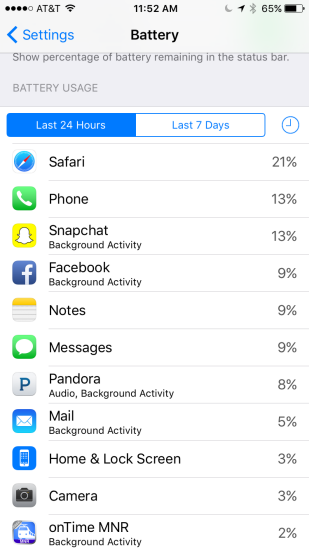
First identify which apps you use most–this may be incredibly obvious or if it’s not, you can go to Settings > Battery to see which of the apps on your phone used up the most of your battery life recently. This won’t be entirely accurate if you recently updated your apps or you have an app on your phone that’s a battery hog. But for the most part, this should give you an indication of the apps you use more frequently.
You can move these apps to to the first page of your home screen OR you can strategically place them at the corners (top right, top left, bottom right, bottom left) of your screen so that you can physically reach them faster with your thumb (think about how you hold and use an iPhone). This approach is best for people who really have a concentrated (small) list of apps they use. If you’re all over the map with your app usage, this might be more difficult because you’ll start running on to two, three, four pages of “important” apps–and then you’re basically back at square one.
READ MORE: How To Never Crack Your iPhone Screen Again
4. Alphabetize.
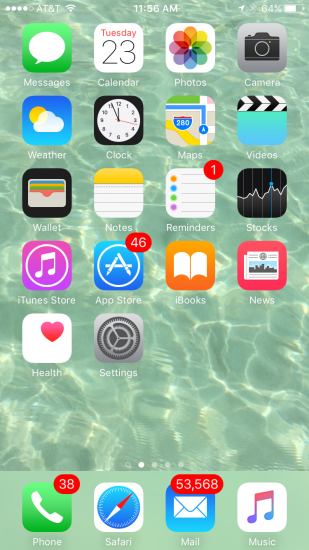
This is good for people who can recall the alphabet quickly (some people just don’t have it). It can even be done automatically so you don’t have to manually click and drag like the options above.
Here’s how to do it:
Settings > General > Reset > Reset Home Screen Layout
The Apple apps that come with the phone will remain in their original spots, but everything else will be automatically alphabetized.
So, there you have it! 4 clever ways to organize your apps better. email editor@shefinds.com with more questions about how to do your life better.