


Kim Kardashian at Kering's 3rd Annual Caring for Women Dinner.
Madonna in blue mini dress and metallic boots at Met Gala.
Taylor Swift boarding private jet in 2024.

Tech

The One Privacy Setting You Should Turn On ASAP, According To Security Experts

February 17, 2020 by Lisa Cupido
shefinds | Tech
Featured image

Left to their own devices, our phones aren’t very good when it comes to minding their own business. There are far too many iPhone features that leave you wide open — they can track your location, the sites you visit (the better to send you targeted ads), and more.

There are a number of privacy features that are worth turning on, but if you have to start somewhere, start with this one: this is the one privacy setting you should turn on ASAP, according to security experts.

house unit img
Women Are Swapping Their Boring Water For This Ice Pop Electrolyte Mix!
iphone

Location Settings


Put simply, Location Services allows your phone, its apps and third-party services, to provide location-based services that suit your current whereabouts. In other words: there are apps that can figure out where the nearest gas station is located, whether or not it’s about to rain exactly where you’re standing, AND even whether there’s a potential date happy to meet you for coffee at your local Starbucks.


There are obvious reasons why a weather app needs your location to work effectively — but the same can’t be said for all apps.

iphone

As reported by Mashable: “As the New York Times demonstrated in December, many mobile apps are constantly collecting users' locations throughout the day and then sharing that information with numerous third-party companies. The invasiveness is staggering — "accurate to within a few yards and in some cases updated more than 14,000 times a day." 
iphone

The first step in turning up the privacy when it comes to location services is figuring out which apps are using your location.   Head over to Settings > Privacy > Location Services. Here you’ll find a list of apps that are requesting your location.
iphone

Now comes the fun part (or, at the very least, the necessary part): you can individually pick and choose which apps get access to your location and which, literally, “Never” earn that right (simply toggle to “Never” beside that app.


You’ll probably want to restrict your camera and other non-essential apps from tracking you, but you can also limit the access of apps like Google Maps and Waze by setting them to “While Using the App.”

Author:

Lisa Fogarty is a lifestyle writer and reporter based in New York who covers health, wellness, relationships, sex, beauty, and parenting.

New iPhone 17 displaying sleek design and features.
Woman working on laptop, focused on her tasks.
Smartphone connected to charger, indicating low battery.
iPhone screen showcasing various applications and features.
Close-up of hands holding iPhone 17 Pro Max.
Person using iPhone to browse apps and features.
Holding iPhone, displaying multiple applications on screen.
Woman texting on smartphone, engaged in conversation.
Android phone showing a variety of applications.
Samsung Galaxy Z Flip 7 smartphone in an open position.
Woman enjoying fresh summer salad with watermelon and feta.
Holding Android phone, displaying popular apps.
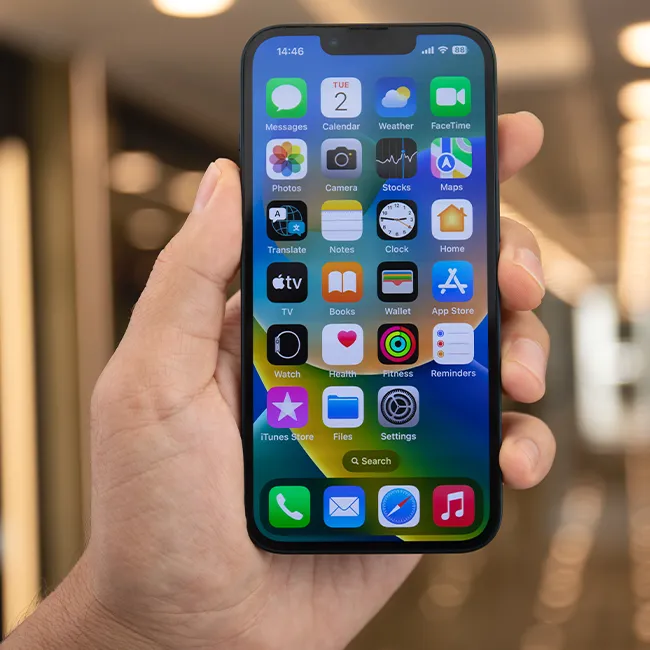
iPhone 14 featuring various apps on its screen.
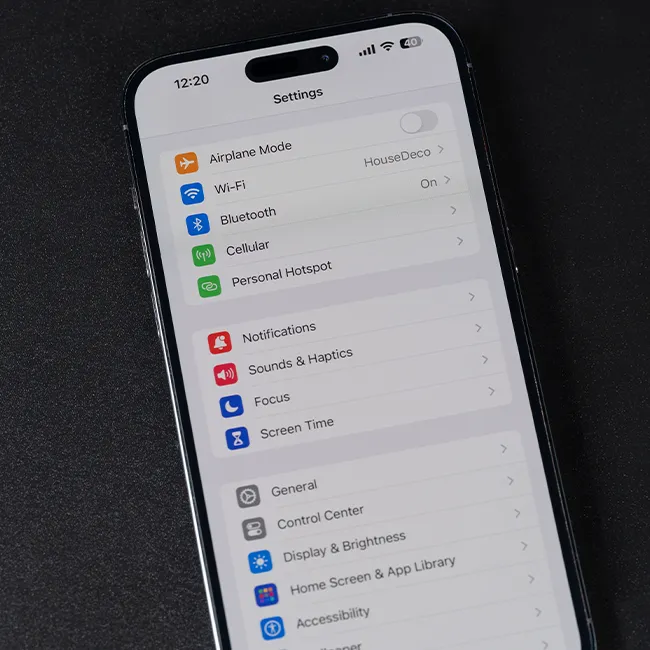
iPhone settings screen indicating need for charging.
Sony headphones, iPad, and laptop set up on Amazon.
Person actively using iPhone for communication or browsing.
iPhone screen filled with different applications and icons.
iPhone storage full notification displayed on screen.
Person holding iPhone, ready to use or take a photo.
iPhone screen showcasing apps and features available.
New iPhone 17 displaying sleek design and features.
Woman working on laptop, focused on her tasks.
Smartphone connected to charger, indicating low battery.
iPhone screen showcasing various applications and features.
Close-up of hands holding iPhone 17 Pro Max.
Person using iPhone to browse apps and features.
Holding iPhone, displaying multiple applications on screen.
Woman texting on smartphone, engaged in conversation.
Android phone showing a variety of applications.
Samsung Galaxy Z Flip 7 smartphone in an open position.
Woman enjoying fresh summer salad with watermelon and feta.
Holding Android phone, displaying popular apps.
iPhone 14 featuring various apps on its screen.
iPhone settings screen indicating need for charging.
Sony headphones, iPad, and laptop set up on Amazon.
Person actively using iPhone for communication or browsing.
iPhone screen filled with different applications and icons.
iPhone storage full notification displayed on screen.
Person holding iPhone, ready to use or take a photo.
iPhone screen showcasing apps and features available.