





Parting ways with your phone, even temporarily, can be a stress-inducing exercise in letting go of control. But when something’s broken, sometimes the only way to fix it is to reach out to Apple experts and make an appointment to drop off your device in a tech expert’s capable hands. Most technicians will be incredibly reliable and trustworthy. But that doesn’t mean you shouldn’t protect your device and your private data. Apple experts say you should turn off this setting when you get your iPhone repaired — it can help you maintain your privacy and security.
Turn Off “My Find” or “Find My iPhone”
When sending your phone in for repair, it’s important to turn off the “My Find” or “Find My iPhone” setting, cautions Steven Athwal, a UK-based telecommunications specialist, entrepreneur, investor, and solutions provider. “This is because this feature enables the user to track, lock, or erase their phone remotely, which could interfere with the repair process or even prevent the repair technician from accessing certain components,” Athwal says.
In the worst-case scenario, Athlwal warns that leaving the “My Find” setting on could mean that the repair technician may not be able to repair your device at all, as they won’t be able to access certain components or reset the device without your iCloud password.
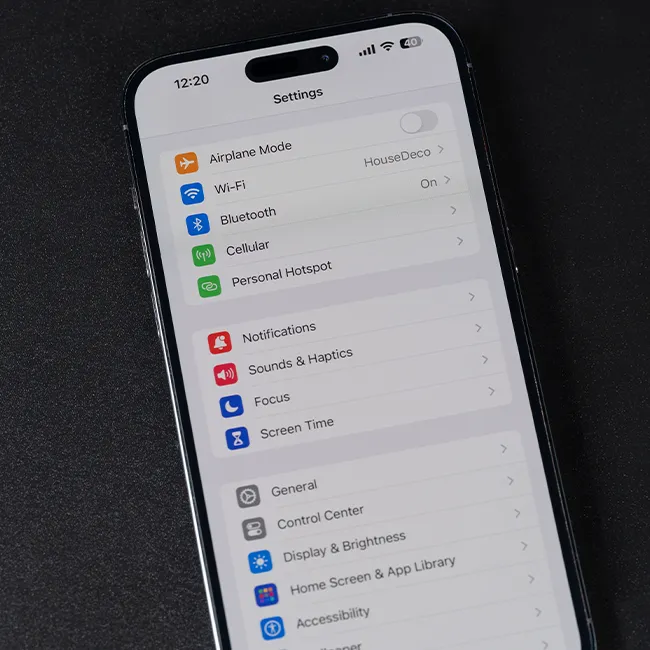
To turn off Find My iPhone, open the Settings app, tap [your name] > Find My, tap Find My [Device], then tap to turn it off. Enter your Apple ID password. Finally, tap Turn Off.
Other Tips Before You Repair Your Phone
In addition to making this important security adjustment, Athwal says there are a few more things you should do to your phone prior to leaving it for a repair. “Before sending your phone in for repair, it’s always a good idea to back up your data,” he says. “This can be done using iCloud or iTunes and will ensure that your important files and photos are safe in case something goes wrong during the repair process, or your technician accidentally deletes any data.”
Athwal also recommends removing your SIM card and any accessories, such as cases or screen protectors, before sending your phone in for repair. “This will prevent any damage to these components during transit, or accidentally getting lost at some point in the repair process,” he adds. “You should also take photos of your phone before sending it in for repair, documenting any scratches, dents, or other damage to the hardware, or glitches in the software. This can help protect you in case there is any damage or loss during the repair process, as well as help the repair team if they need to refer back to the issue at hand.”
Finally, be sure to disable any passcodes or Touch ID/Face ID. “This will make it easier for the repair technician to access your device and diagnose any issues and can be reapplied once you have the phone back,” Athwal says. “I wouldn’t recommend sharing your passcode as this could easily be lost and could delay the repair process if they need to try and contact you.”
There’s a good chance you won’t need to protect yourself before getting your phone repaired, but it’s always a wise idea to be proactive and bump up your security measures.