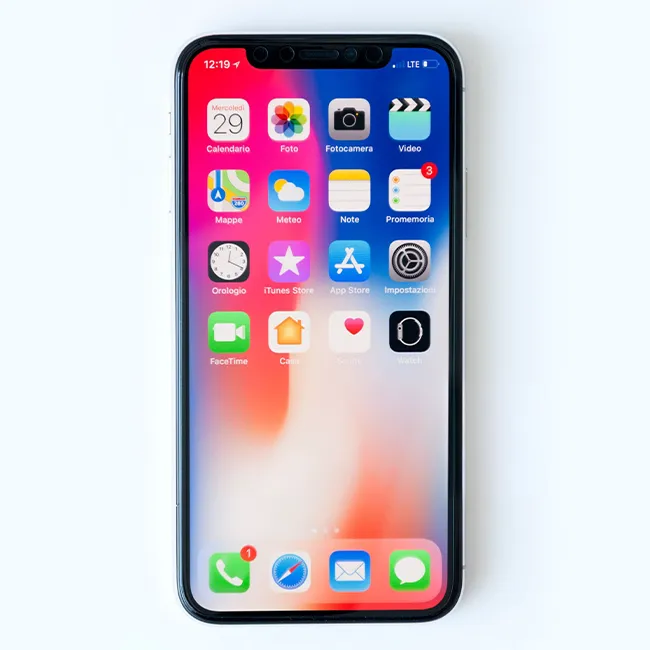






If you’re constantly amazed by all of the impressive things your iPhone can do to make your days and life easier, prepare to be surprised once again. It seems like there’s no end to its cool features that can do everything from help you manage your budget to help you hang art on your wall so that everything is in alignment. “Your iPhone has a lot of features that a lot of people simply don’t know about,” says Tech Expert Rick Costa from Houselectric.com, a blog about technology, automotive, and more. “Whether you’re an expert or a novice, these features can make your phone even more useful and add tons of convenience.” Read on to discover five hidden features you never knew your iPhone had — as well as a few bonus shortcuts that will help you get the best user experience possible from your device.
Magnifier
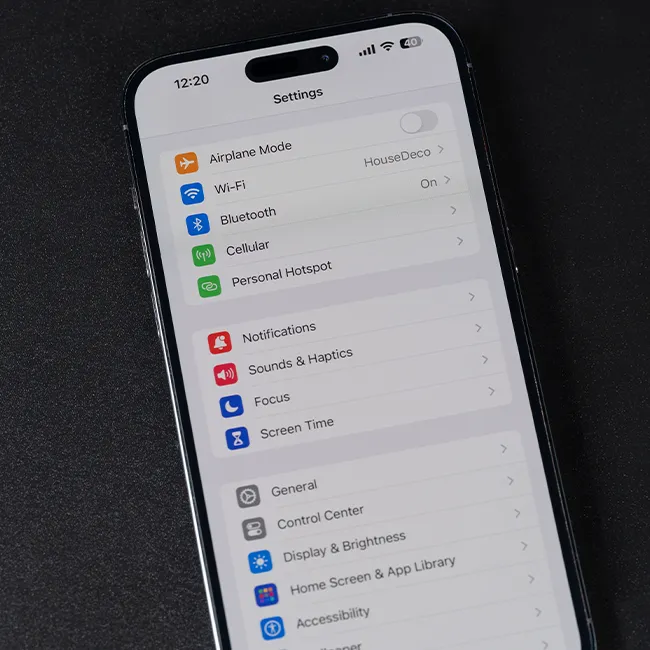
John Willis, the founder of Convert Free, counts your phone’s Magnifier as one of its top hidden features. “The iPhone has a built-in magnifier that can help you read small text,” Willis said. “To activate it, go to Settings > Accessibility > Magnifier and turn it on. You can then triple-click the Home button to access the magnifier. Most of the users are not aware of this feature and they end up downloading an external application for the usage.”
Calculator — Delete Digits
Using your phone’s calculator just became easier. You can swipe to delete digits in Calculator, Willis reveals. “If you make a mistake while using the calculator app, you can swipe left or right on the screen to delete the last digit entered,” he said.
Back Tap
The back tap feature allows you to control your iPhone with two taps on the back of your device, Costa says. “This is especially useful if you have difficulty reaching the home button. To activate this feature, go to Settings > Accessibility > Touch > Back Tap.”
Do Not Disturb Mode
Being plugged in 24/7 can be a major distraction. Luckily, there’s a hidden setting for that: the Do Not Disturb mode. “This mode will allow you to set specific times when your phone will not be disturbed by notifications,” Costa said. “You can also customize it to allow calls from specific contacts. To activate this mode, go to Settings > Do Not Disturb.”
Manage Your Storage
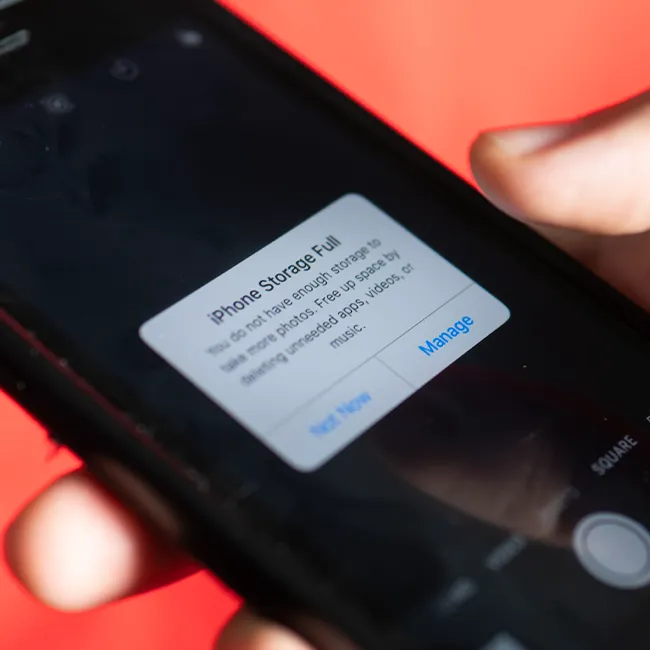
“If you’re running low on storage space, this super convenient feature will help you free up space,” Costa said. “Go to Settings > General > iPhone Storage and you’ll be able to see how much space is being used by each of your apps. You can even delete apps right from this page.”
Additional Shortcuts
Some of the best hidden features on your iPhone are actually shortcuts that make it a cinch to get more done in a flash. Donald Lewis, a senior developer at Indivisible Game, offers these eight shortcuts you need to know:
1. The hidden calculator. Did you know that your iPhone has a built-in calculator? You can access it by swiping up from the bottom of the screen..
2. The hidden level. Need to check your level? Swipe up from the bottom of the screen to access the hidden level.
3. The hidden notes app. Did you know that your iPhone has a built-in notes app? You can access it by swiping down from the top of the screen.
4. The hidden camera. Swipe right from the lock screen to access the hidden camera.
5. The hidden control center. Swipe up from the bottom of the screen to access the hidden control center.
6. The hidden settings menu. Swipe down from the top of the screen to access the hidden settings menu.
7. The hidden magnifier. Swipe up from the bottom of the screen to access the hidden magnifier.
8. The hidden Safari browser. Swipe left from the lock screen to access the hidden Safari browser.