


Every so often it’s a good idea to look through your iPhone and get rid of anything that no longer serves you. Everything from certain apps to documents you have stored on your phone could be needlessly taking up storage space, slowing your iPhone down to a snail’s pace, and draining your battery much faster than necessary.

Women Are Swapping Their Boring Water For This Ice Pop Electrolyte Mix!

Your iPhone is a sophisticated little device that can handle quite a bit of data. But, at some point, if you test your phone to the limit, it may respond by not functioning at quite the same rate as it used to function. Loading up your phone with a million apps that you never use, including a few that are notorious at draining your battery, is never a good idea. And keeping hundreds of files stored that you haven’t thought about in years could also affect your phone.
Clean up your device by considering deleting these five things from your iPhone.
1. Old Files
If you routinely use your phone to download documents like PDFs, there’s a good chance you forget about them 10 minutes after you’ve read them. Get into the habit of deleting these files after they’ve served their purpose.

2. Documents & Data
Documents and Data on your iPhone refers to the browser history, cookies, logs, caches of photos and videos, database files and more piled up by your apps, according to igeeksblog.com. And if you aren’t deleting them on a regular basis, you will know it: your phone will become much slower.
Here’s how to delete documents and data:
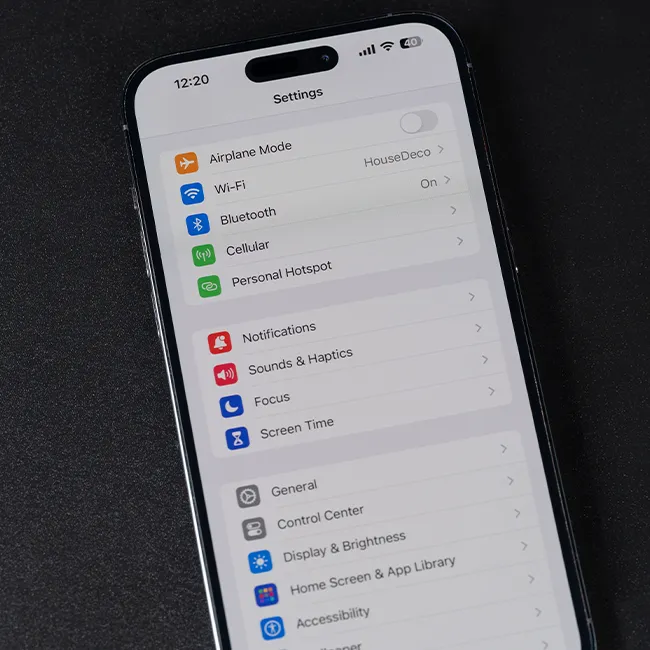
Open Settings app on your iOS device → Tap on General.
Tap on iPhone/iPad Storage → Now, tap on the app in question.
You have two options: Offload App and Delete App.
If you want to delete the app and keep its data, tap Offload App. If you would rather clear out all of the data, hit Delete and Confirm.
3. Old Emails
Got 1000 emails kicking around in your Outlook folder? Get rid of them all, in five simple steps, by following these tips from imore.com:
Open the Mail app.
Tap the inbox you'd like to relieve of its unread count.
Tap Edit.
Tap Trash All (or Mark All).
Tap the Trash All/Archive All confirmation alert (or, if you're Marking All, tap Mark as Unread).
4. Images and Videos
Images and especially videos take up so much storage space on your device. Yet, you may be reluctant to delete them and erase a part of your history. You can safely store them by moving them from your iPhone to iCloud. These tips from 9to5mac.com explain how simple this is to do:
Enable iCloud Photo Library by turning it on from your iOS device that is currently running iOS 8.1 or later. Open up Settings and tap on iCloud. From there tap on Photos.
Turn on iCloud Photo Library. This will automatically upload and store your entire library in iCloud to access photos and videos from all of your devices.
To see your photos that have been uploaded, go to iCloud.com and sign in with your Apple ID and password.

5. Facebook App
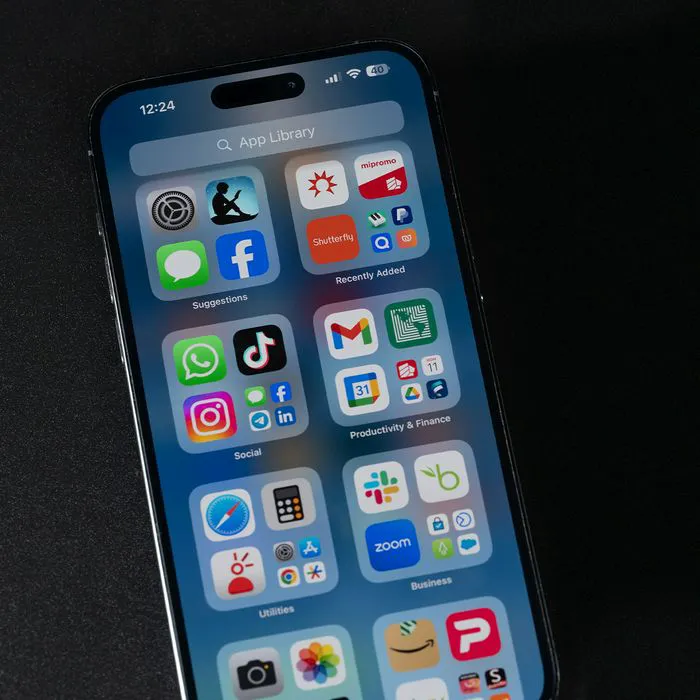
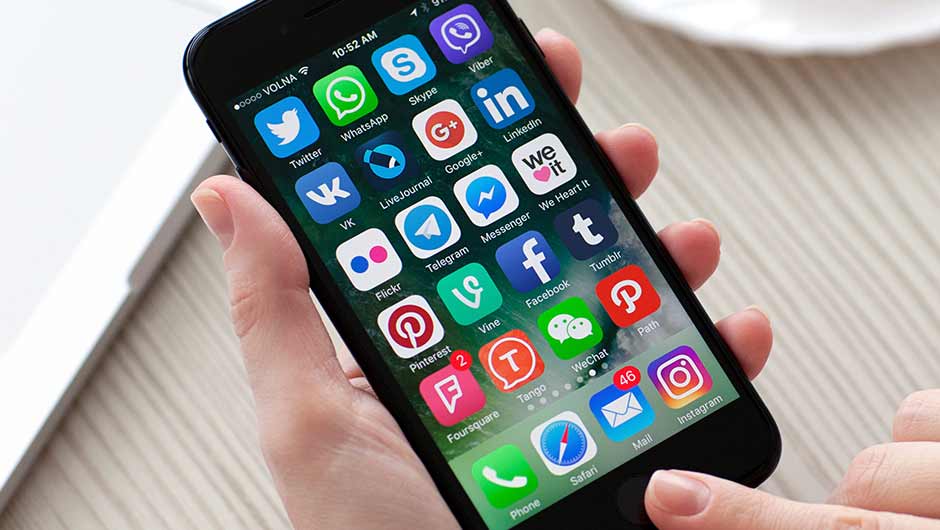
We saved the most painful one for last. Because it automatically loads videos and you’re probably clicking on it frequently throughout the day, the Facebook app is killing your battery and storage. Deleting the app and only accessing Facebook through the Safari browser may take some getting used to, but your phone will operate much better.