


Modern workspace with a person typing on a laptop.
Chic haircuts for women over 50 trending in 2026.
Donald Trump discussing maternal healthcare at a public event.

Tech

This Is The Worst Mistake You Can Make When Deleting Contacts On Your iPhone

November 1, 2019 by Lisa Cupido
shefinds | Tech
Featured image

Many of us accumulate contacts on our iPhones — fast. The amazing features allows you to save every single person you’ve ever met, just in case you should need to call or text them at some point in your life. Of course, if you scroll through your contacts, there’s a good chance you’ll see plenty of names from many moons ago — contacts that you likely don’t need anymore.

You can delete them, of course. But there’s one thing many of us do that is interfering with the process. This is the worst mistake you can make when deleting contacts on your iPhone.

house unit img
Women Are Swapping Their Boring Water For This Ice Pop Electrolyte Mix!

iphone

Deleting contacts on your iPhone seems simple enough. See a name that you don’t recognize, and go through the simple process of deleting it.


But, according to Vkrepair.com, some iPhone users have experienced a glitch by which their deleted contacts seem to pop right back up on their phones unexpectedly. It seems there’s another step you’ll need to take to delete contacts for good.

iphone

Before you take that permanent step, you’ll have to simply delete the contact you no longer want. Here’s how:


Open the Contacts app.
Scroll to the name you wish to delete.
Tap “Edit.”
Scroll to the bottom of the screen.
Tap “Delete contact.”
Confirm the deletion by hitting “Delete contact” again.
This number will now be removed from your Contact List.
iphone

The next step is to delete your contact permanently from your iPhone:


Open the Messages app.
Begin typing the name of the contact you wish to permanently delete.
When the person’s name or number appears in the list of recent contacts, tap the Info icon on the right side of the screen.
Tap “Remove From Recents”.
The contact will then be removed from your iPhone permanently.
iphone

If your iPhone is synched to iCloud, it’s also a good idea to delete the contact from iCloud:


Open your web browser.
Go to iCloud.com.
Log in using your Apple ID (you may have to do the two-factor authentication).
Open the Contacts app.
Select the contact you wish to delete.
Click on “Edit.”
Click on “Delete Contact”.
Confirm your delete.

This may seem like an awful lot of steps to take to get rid of a phone number, but these steps will ensure that your unwanted contact is truly, permanently deleted from your device.
Author:

Lisa Fogarty is a lifestyle writer and reporter based in New York who covers health, wellness, relationships, sex, beauty, and parenting.

Close-up of Android phone showcasing app interface.
New iPhone 17 showcasing sleek design and features.
Woman working on laptop in a modern workspace.
Smartphone charging with a power adapter connected.
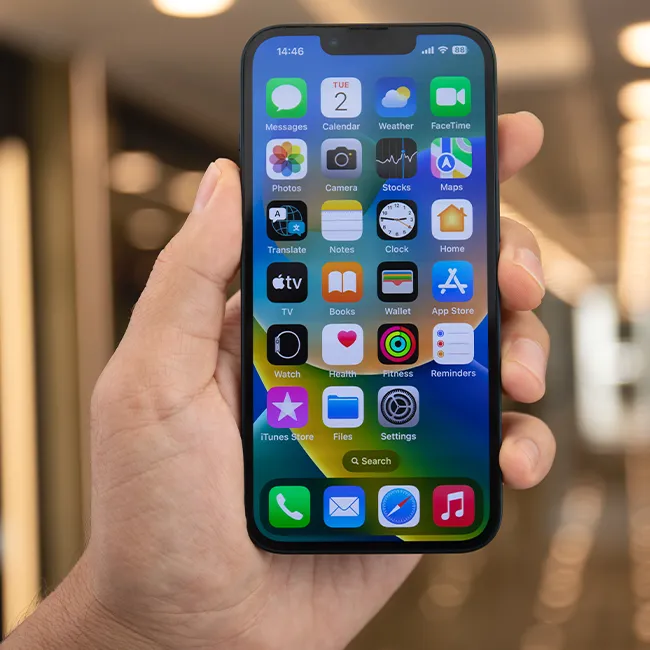
Display of popular apps on an iPhone screen.
Close-up of hands holding an iPhone 17 Pro Max.
Individual using an iPhone for various tasks.
Person holding iPhone displaying multiple apps.
Woman texting on her smartphone with focus.
Android phone showcasing diverse applications.
Samsung Galaxy Z Flip 7 smartphone in use.
Woman enjoying a fresh summer salad outdoors.
Holding an Android phone with app interface visible.
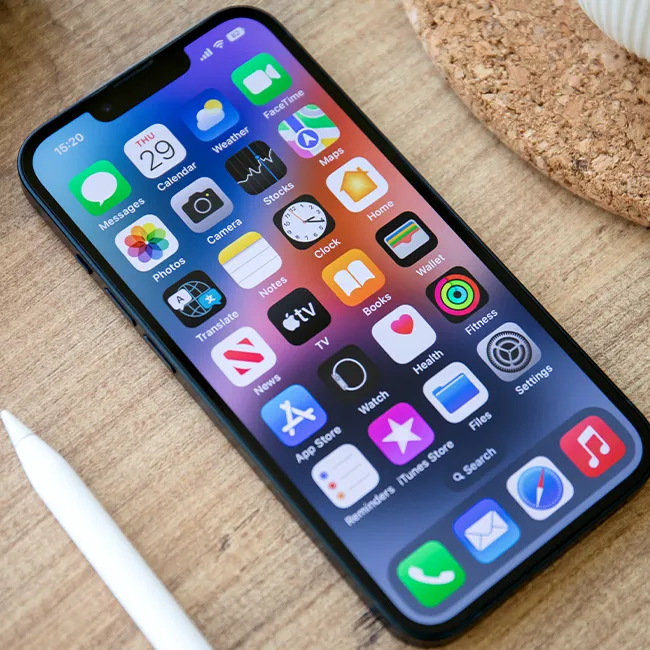
iPhone 14 displaying a variety of installed apps.
iPhone indicating low battery and charging settings.
Sony headphones and iPad being used with laptop.
Individual engaging with an iPhone for communication.
iPhone screen filled with various app icons.
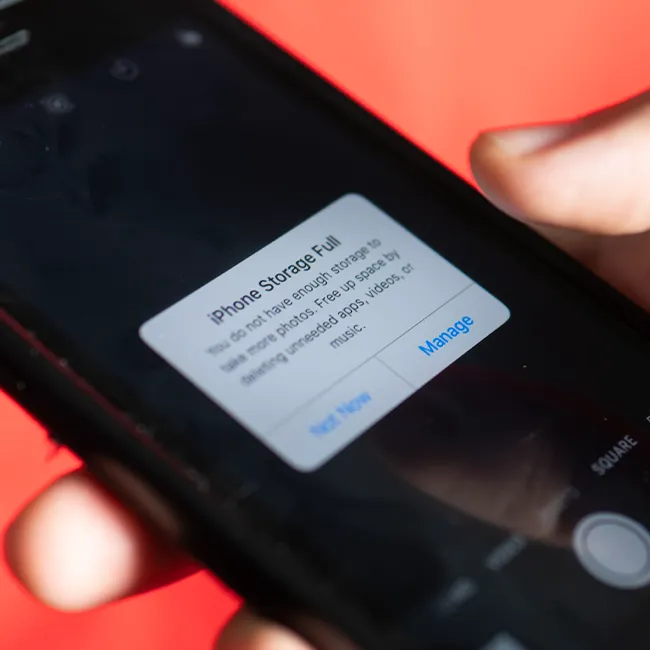
Alert showing iPhone storage is full.
Person holding an iPhone in a casual setting.
Close-up of Android phone showcasing app interface.
New iPhone 17 showcasing sleek design and features.
Woman working on laptop in a modern workspace.
Smartphone charging with a power adapter connected.
Display of popular apps on an iPhone screen.
Close-up of hands holding an iPhone 17 Pro Max.
Individual using an iPhone for various tasks.
Person holding iPhone displaying multiple apps.
Woman texting on her smartphone with focus.
Android phone showcasing diverse applications.
Samsung Galaxy Z Flip 7 smartphone in use.
Woman enjoying a fresh summer salad outdoors.
Holding an Android phone with app interface visible.
iPhone 14 displaying a variety of installed apps.
iPhone indicating low battery and charging settings.
Sony headphones and iPad being used with laptop.
Individual engaging with an iPhone for communication.
iPhone screen filled with various app icons.
Alert showing iPhone storage is full.
Person holding an iPhone in a casual setting.