


The Smith family attending the Bad Boys premiere, smiling together.
Kourtney Kardashian at the Grammys, showcasing her stylish red carpet look.
Katy Perry and Orlando Bloom sharing a moment at an event.

Tech

The One Setting You Should Turn Off To Make Your iPhone Run So Much Faster

February 14, 2023 by Lisa Cupido
shefinds | Tech
Featured image

A slow phone is no fun. What’s more: it can make your days that much more frustrating as you wait for what can seem like forever for apps and web pages to load or for updates to take hold. But here’s the good news: while you can’t always fix a phone that’s older or needs a new battery (unless you shell out some money), there are simple and fast ways that you can bring your phone up to speed simply by adjusting a setting or two. This is the one setting that tech experts say you should turn off to make your iPhone run so much faster. 

Setting: Background App Refresh

Background App Refresh allows apps to update their content in the background even when you’re not using them, says Tech Expert Krizza Buendia from euphoricview.com. “This can cause the apps to consume a significant amount of battery and resources, slowing down your phone’s performance,” she said. Fortunately, the fix is simple and effective. “After turning off the Background App Refresh setting, you should notice an improvement in your iPhone’s battery life and performance,” Buendia said. “The apps will still work, but they will only refresh their content when you open them, rather than continuously running in the background.”

How to turn it off:

  1. Go to Settings
  2. Tap on General
  3. Tap on Background App Refresh
  4. Toggle off the switch for Background App Refresh or you can also turn off the switch for individual apps.

Buendia notes that it is also recommended to periodically check the apps you have installed on your iPhone and remove any that you are no longer using to free up space and resources.

Remove background apps

After you turn off Background App Refresh, turn an eye toward the apps on your phone, as well. “If you have a lot of apps open at once on your computer, you could notice that it is taking longer to complete tasks,” says 

Abdul Saboor, a full stack developer at The Stock Dork. “When it comes to making use of an iPhone, this also holds true. When you have an excessive number of applications open at the same time, your iPhone’s memory will get full, which will cause the device to become slow.”

Getting rid of applications that operate in the background will help your iPhone run more quickly, he notes. “Swipe up from the bottom of the Home screen on an iPhone X or later model, and pause in the middle of the screen. Instead, double-click the Home button if you have an iPhone 8 or an earlier model. Swipe either to the right or the left to move between apps. To exit the app, swipe up on the preview screen at the top of the screen.”
Author:

Lisa Fogarty is a lifestyle writer and reporter based in New York who covers health, wellness, relationships, sex, beauty, and parenting.

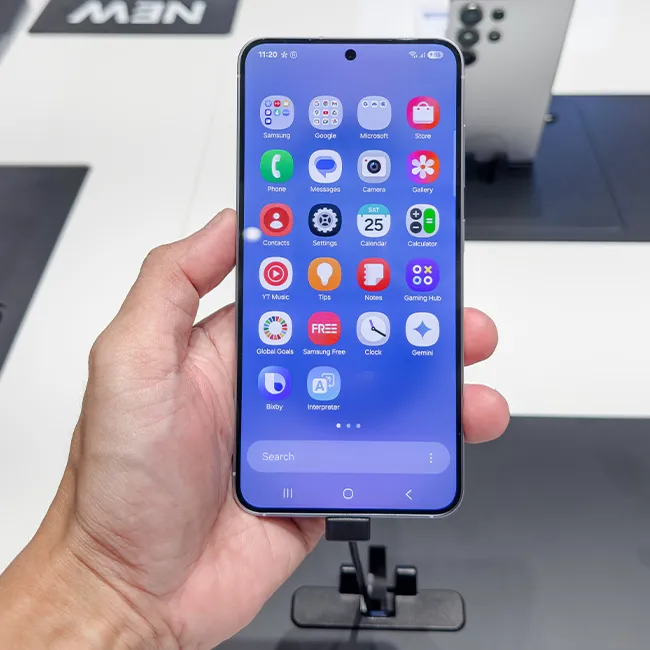
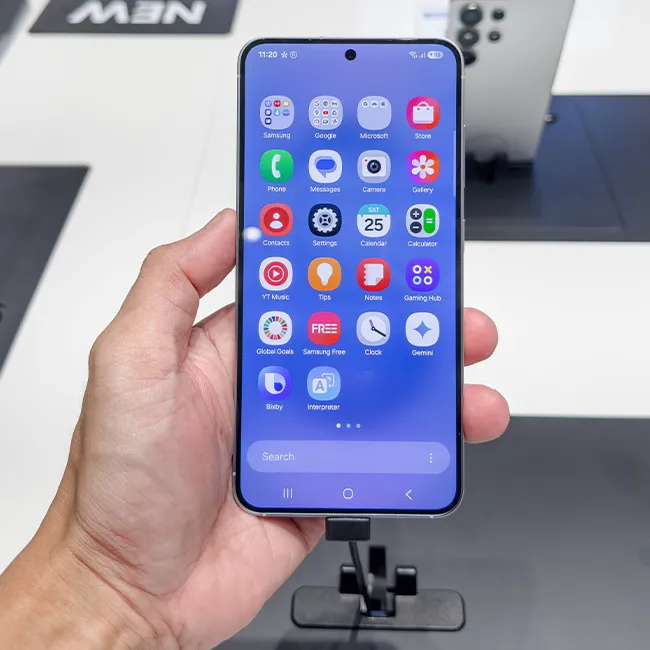
Holding Android phone displaying various apps on screen.
Close-up of the iPhone 17 showcasing its sleek design.
Woman working on a laptop in a stylish setting.
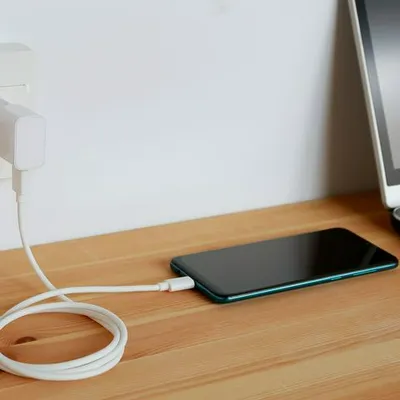
Smartphone plugged in, indicating charging status.
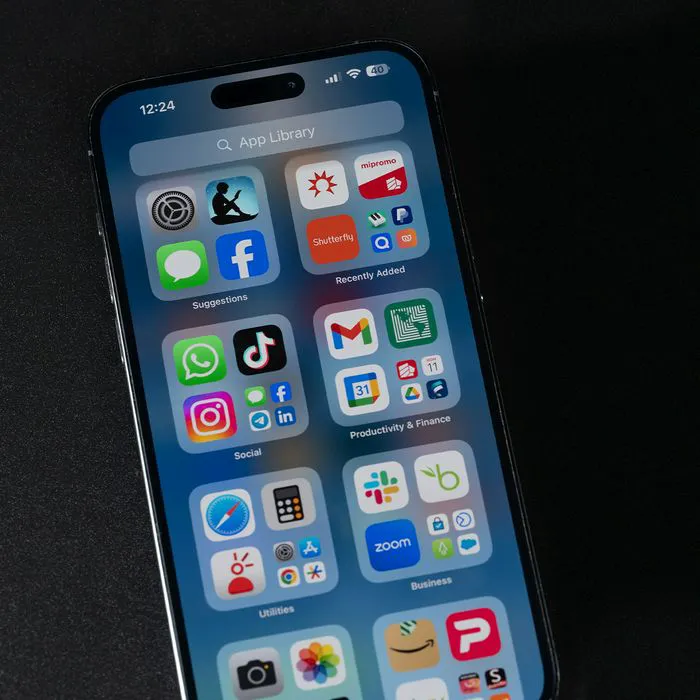
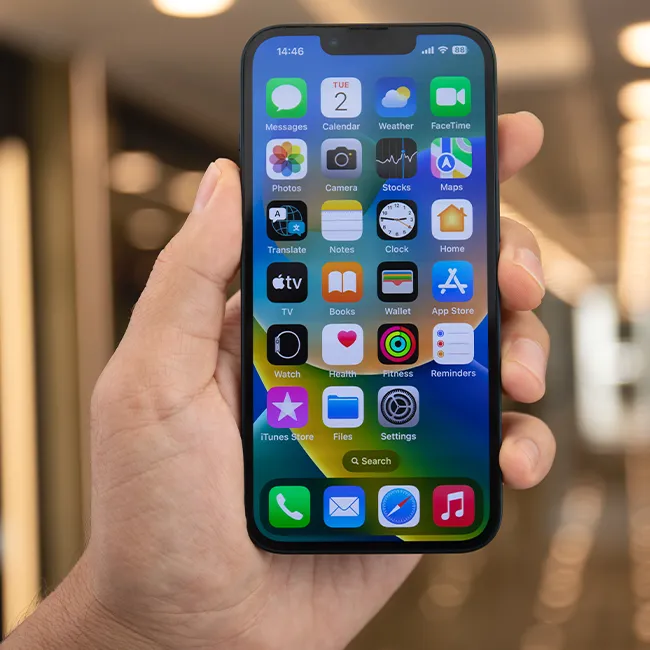
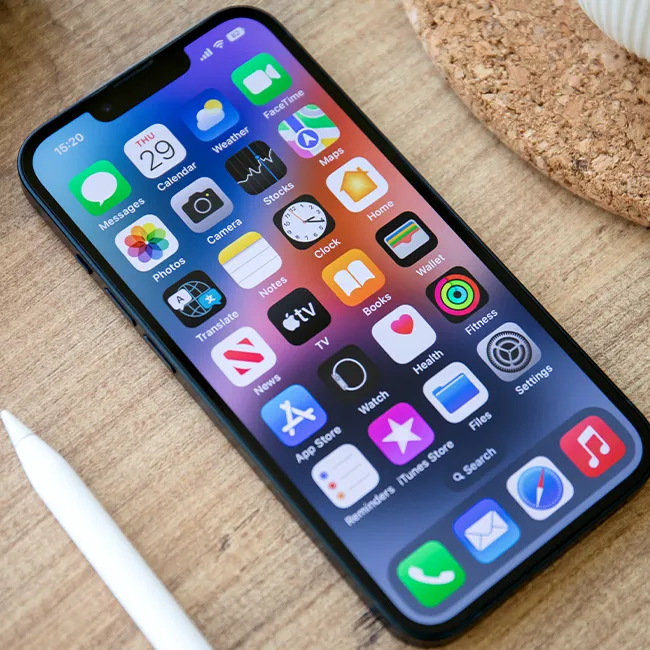
iPhone screen filled with popular apps and icons.
Close-up of male hands holding an iPhone 17 Pro Max.
Using an iPhone for texting or browsing apps.
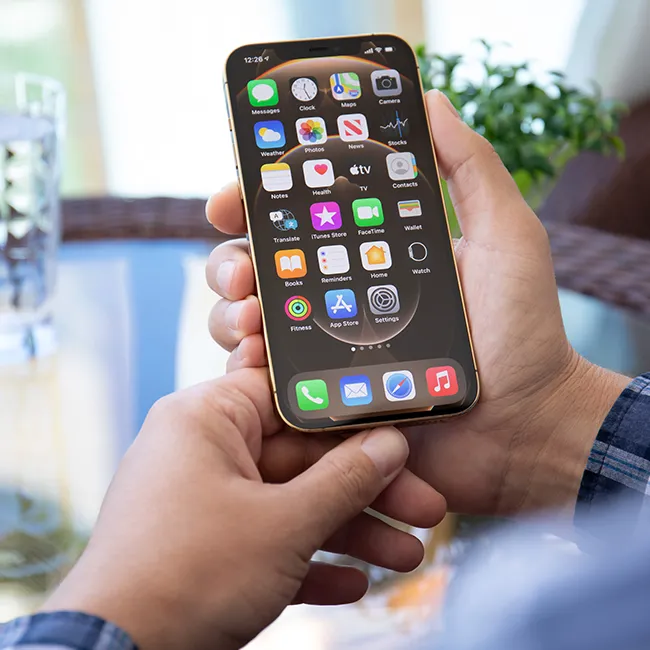
Holding iPhone showcasing various apps on display.
Woman texting on smartphone with a focused expression.
Android phone displaying a variety of installed apps.
Samsung Galaxy Z Flip 7 smartphone in an open position.
Woman enjoying a fresh watermelon salad in summer attire.
Holding Android phone showing a selection of apps.
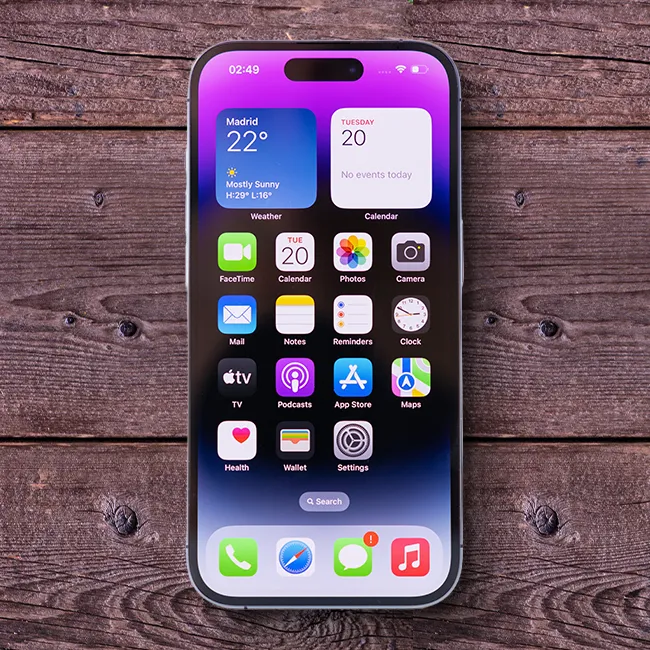
iPhone 14 with a vibrant display of applications.
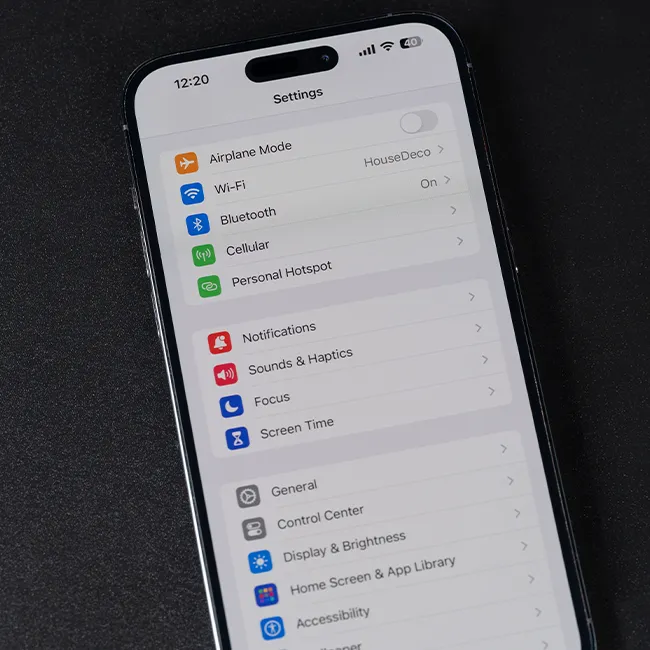
iPhone settings screen showing charging needs and options.
Sony headphones with an iPad and laptop setup.
Using an iPhone with a casual, relaxed demeanor.
iPhone screen filled with various applications and widgets.
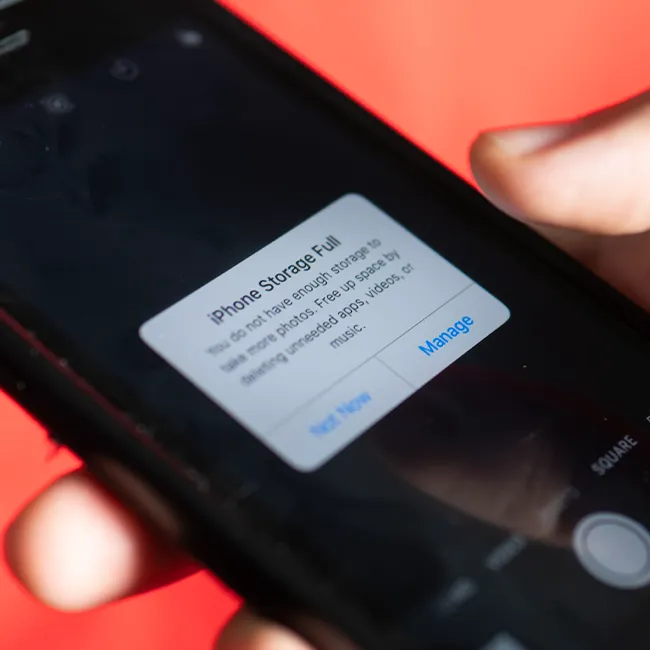
iPhone displaying a warning about full storage capacity.
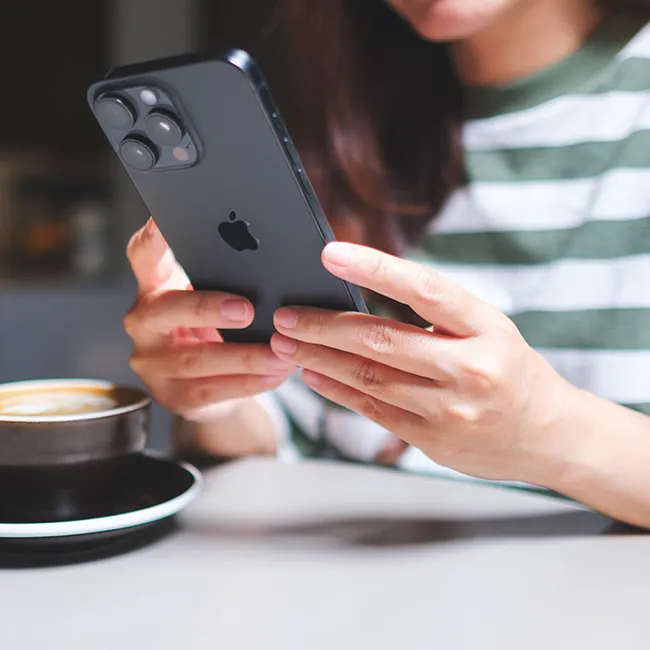
Holding an iPhone in hand with a casual grip.
Holding Android phone displaying various apps on screen.
Close-up of the iPhone 17 showcasing its sleek design.
Woman working on a laptop in a stylish setting.
Smartphone plugged in, indicating charging status.
iPhone screen filled with popular apps and icons.
Close-up of male hands holding an iPhone 17 Pro Max.
Using an iPhone for texting or browsing apps.
Holding iPhone showcasing various apps on display.
Woman texting on smartphone with a focused expression.
Android phone displaying a variety of installed apps.
Samsung Galaxy Z Flip 7 smartphone in an open position.
Woman enjoying a fresh watermelon salad in summer attire.
Holding Android phone showing a selection of apps.
iPhone 14 with a vibrant display of applications.
iPhone settings screen showing charging needs and options.
Sony headphones with an iPad and laptop setup.
Using an iPhone with a casual, relaxed demeanor.
iPhone screen filled with various applications and widgets.
iPhone displaying a warning about full storage capacity.
Holding an iPhone in hand with a casual grip.