


Madonna in blue mini dress and metallic boots at Paris event.
Taylor Swift's private jet amidst wedding preparations controversy.
Woman showing signs of fatigue from lack of sleep.

Tech

You NEED To Turn Off This Location Setting Right Now, According To Security Experts

December 23, 2019 by Lisa Cupido
shefinds | Tech
Featured image

You may be surprised to learn how many apps are actually relying on your phone’s location services to provide the best service possible to you — at a cost, of course. It may make you uncomfortable to think about your phone being able to track your every movement, even if the purpose is to bring you an updated weather report or connect you with a person nearby who might turn out to be the coffee date of your dreams.

You can take control of the situation — you need to turn off this location setting right now, according to security experts.

house unit img
Women Are Swapping Their Boring Water For This Ice Pop Electrolyte Mix!
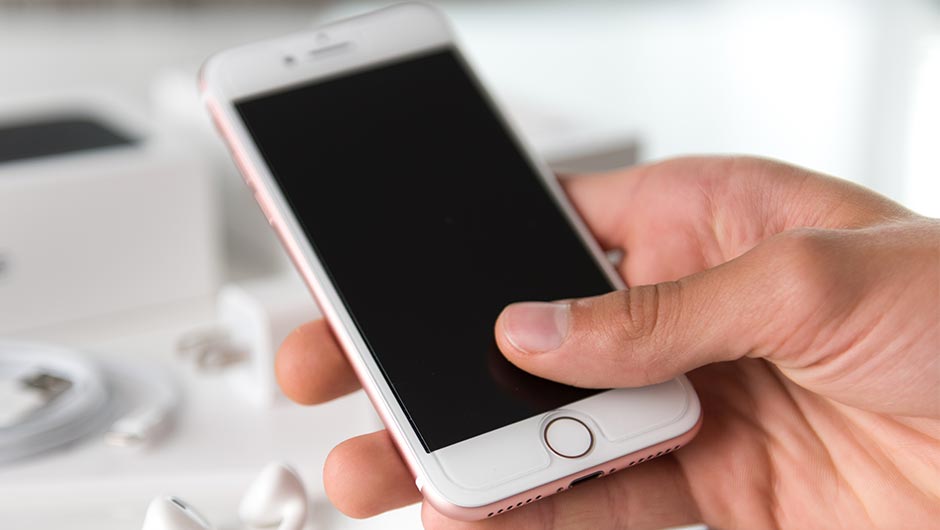
iphone

Unless you have a good idea of which specific apps are using location, go into settings and disable your phone’s ability to just turn on location whenever it pleases.

iphone

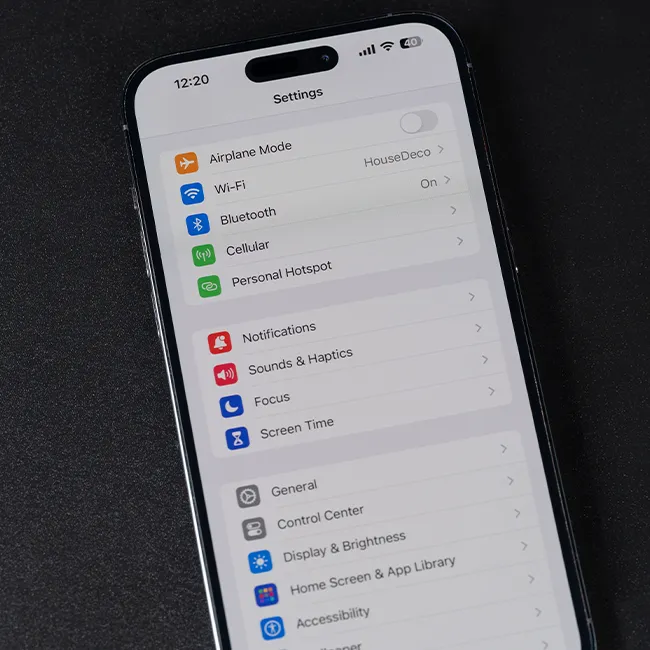
Go to Settings > Privacy > Location Services.


According to Mashable: “On this screen, you'll find a list of apps that either have requested or have access to your location data. Unless it's for a service that actually needs to know where you are, like a maps app, you should individually switch every individual app setting to ‘Never.’”

iphone

If you are attempting to give apps like Google Maps or Lyft access to your location, change the setting to “While Using the App." This shift will ensure that those apps aren’t tracking location at all times, which can be downright creepy.

iphone

One app that many of us forget about when it comes to location services: our phone’s camera. Ever wonder why your photo can automatically place photos in certain cities or at specific landmarks? The camera’s geotagging capabilities may be convenient at times, but if you’d rather disable this feature, go to Settings > Privacy > Location Services > Camera > Never.

Author:

Lisa Fogarty is a lifestyle writer and reporter based in New York who covers health, wellness, relationships, sex, beauty, and parenting.

iPhone 17 showcasing advanced features and sleek design.
Woman working on a laptop in a cozy setting.
Smartphone plugged in for charging, showcasing battery life.
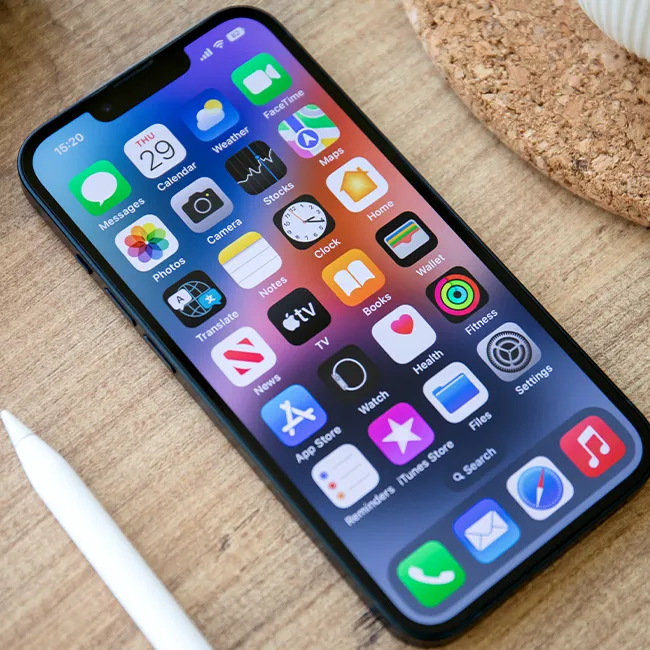
iPhone apps displayed on a vibrant home screen.
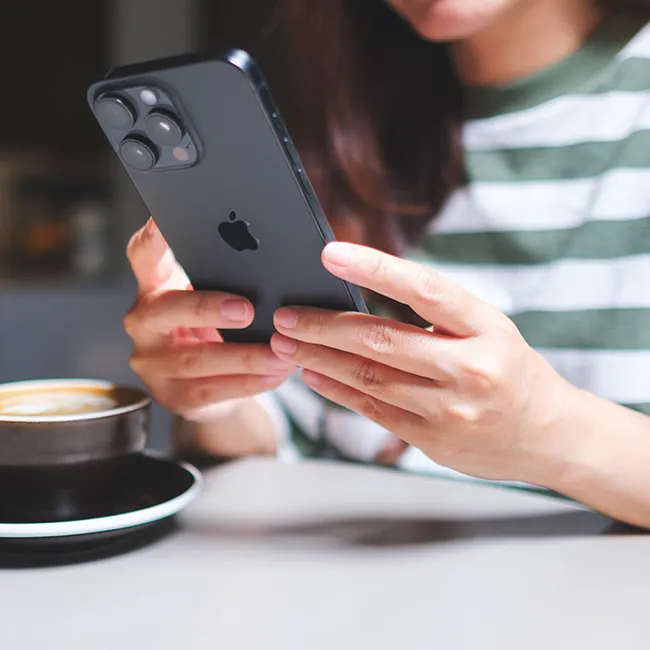
Close-up of hands holding the Apple iPhone 17 Pro Max.
User engaged with iPhone, exploring apps and features.
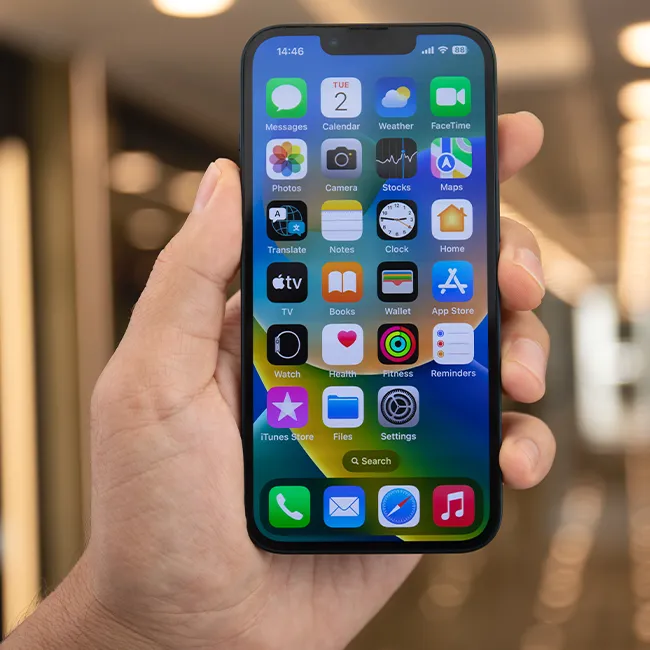
Holding an iPhone displaying various apps on the screen.
Woman texting on her smartphone with a focused expression.
Android phone displaying colorful apps on its interface.
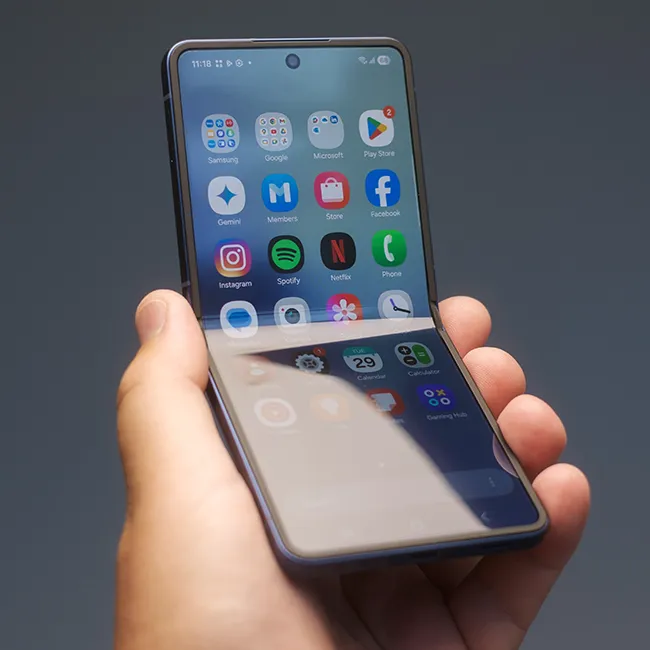
Samsung Galaxy Z Flip 7 smartphone showcasing its unique design.
Woman enjoying a fresh summer salad with watermelon and feta.
Holding an Android phone with various apps visible on screen.
iPhone 14 displaying an array of popular apps.
iPhone settings screen showing low battery and charging options.
Sony headphones beside an iPad and laptop on a desk.
Person using an iPhone for various tasks and applications.
iPhone apps displayed prominently on a home screen.
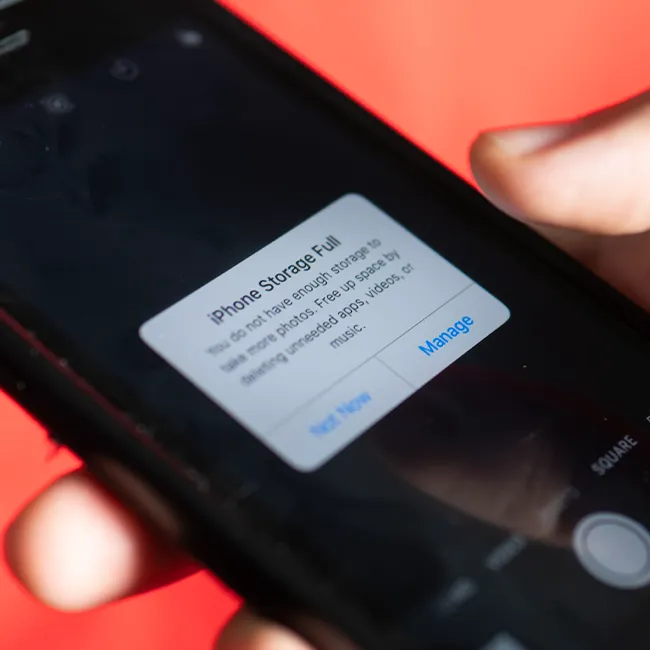
iPhone storage full notification alerting user to manage space.
Close-up of someone holding an iPhone with a sleek design.
iPhone screen showcasing a variety of applications and features.
Image from SHEfinds
Image from SHEfinds
Image from SHEfinds
Image from SHEfinds
Image from SHEfinds
Image from SHEfinds
Image from SHEfinds
Image from SHEfinds
Image from SHEfinds
Image from SHEfinds
Image from SHEfinds
Image from SHEfinds
Image from SHEfinds
Image from SHEfinds
Image from SHEfinds
Image from SHEfinds
Image from SHEfinds
Image from SHEfinds
Image from SHEfinds
Image from SHEfinds