





If you’re a smartphone owner, then you know just how important it is to keep yourself and your personal information safe while using it. However, some people don’t know how to do that.
When it comes to using your smartphone, one of the most crucial pieces of information you carry with it is your location. iPhones and Androids need your location for numerous reasons, from using your Find My features to being able to tag certain spots on your social media profiles. Though many apps and features will safely use your location, some simply don’t need it, but if you have this certain setting on, you might be giving it to them anyway. Read more about the one smartphone setting tech pros say could be giving your apps more access to your information than you realize below.

Women Are Swapping Their Boring Water For This Ice Pop Electrolyte Mix!
A Smartphone Setting That Gives Your Apps More Access To Your Information Than You May Realize
Keeping your personal information safe is an important part of using a smartphone. Many apps ask for access to things like your location, contacts, photos, or microphone, but that doesn't always mean they need that information to work properly. Some apps, such as Google Maps, genuinely need your location to provide directions or show you nearby places. But other apps may still request location access even when it isn't necessary for their main purpose or function, which is why it's worth checking which apps have access to your information.
Reviewing your phone's privacy settings from time to time can help you limit unnecessary access and have more control over what information your apps can use. Both iPhones and Android phones let you decide which apps can access your location.
"As location permissions rely on GPS and can be used to track you directly or pinpoint your frequent haunts over time, location settings are the first you should audit," wrote cybersecurity journalist Charlie Osbourne for ZDNET. "If you leave this permission on all the time, you may be broadcasting where you are at home, at work, and in areas you frequently visit. This can be especially dangerous in cases of stalking or domestic abuse, although some of us do leave location sharing on so friends and family know where I am. In general, leave this one to 'only when using the app,' or turn it on manually as and when you need to."
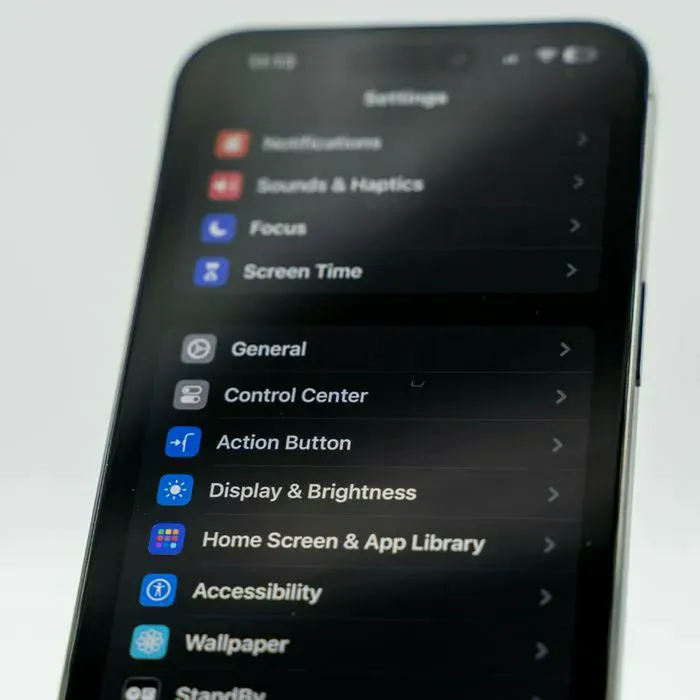
On an iPhone, you can go to Settings > Privacy & Security > Location Services to see which apps have location access. You can choose options like Never, While Using the App, or Always, depending on the app and its purpose. iPhones can also let you turn off Precise Location, which gives an app a general area rather than your exact location.
On Android phones, you can usually find these controls by going to Settings > Location > App location permissions, although the exact wording varies on the phone. From there, you can choose which apps can use your location and when, with options that may include Allow All The Time, Allow Only While Using The App, or Don't Allow. Like iPhones, many Android models also give users the option to turn off exact location for apps that don't need to know exactly where they are.